
How-To
How do I…?
Step-by-step answers for running your broadcast. Search, or pick a topic.
9 answersGetting started
What do I need to get started?
One iPad or iPhone with iOS 18 or later. That one device is the main device. It films, keeps the score and saves the game. A tripod and a mic help, but you don't need them.
- Check that your device has iOS 18 or iPadOS 18 or later.
- Get a tripod or a mount so the picture stays still.
- Optional: plug in a mic. Then pick it in SETUP → Audio.
- Optional: get a second device to use as a remote or an extra camera. Install the app on it too.
- Before the game, charge the main device and free up space.
Good to know
- The main screen works only with the device held sideways.
- No account. No sign-in.
- You don't need Wi-Fi or a signal to record. You need a connection only to go live.
- A remote works on free. Extra cameras need Pro.
- Video takes a lot of space. At 1080p60 a game is about 10 GB. At 720p60 it is about half. Pick the size in SETUP → Camera & recording, under Export.
- The screen stays awake while the camera is on, so it won't lock mid-game.
How do I install the app?
Get it free from the App Store. On your home screen the app is called Dad Sports.
- Open the App Store on the device you will film with.
- Search for Dad Sports. Or tap Download the app at the top of this site.
- Install it.
- Open Dad Sports from your home screen.
Good to know
- The app is free to download. Pro is an in-app subscription.
- Install it on every device you want to use: the main device, plus any remote or extra camera.
What happens the first time I open the app? How do I pick my sport?
The Start screen asks one thing: WHAT ARE YOU FILMING? Tap your sport, then tap START. Allow the camera and mic. Then a short tour shows you the buttons.
- Open the app. The Start screen shows WHAT ARE YOU FILMING?
- Tap your sport: HOCKEY, BASKETBALL, SOCCER, FOOTBALL, LACROSSE or BASEBALL. The one you pick lights up.
- Don't see your sport? On iPad, or iPhone held sideways, tap the MORE tile. On iPhone held upright, tap the MORE SPORTS bar.
- Pick RINGETTE, VOLLEYBALL, TENNIS, RUGBY, CRICKET or PICKLEBALL.
- Tap START.
- When asked, allow the camera and the microphone. The app needs both.
- On iPhone, turn it sideways.
- A short tour points out each button. Tap Next to go on, ‹ Back to go back, or Skip the tour.
Good to know
- HOCKEY is picked when the screen opens. Make sure your sport is the lit tile before you tap START.
- The line under the tiles says how that sport is scored.
- On free, the sport you pick here is your only sport. Changing it later needs Pro.
- On Pro, change sport any time in SETUP → Sport. Changing sport resets the game. You can't change it while you record or stream. See "How do I change my sport or set how long each period is?"
- See the tour again any time: SETUP → About & data → Replay the tour.
- Joining someone else's game instead? Tap the line under START: "Already filming on another device? Use this one as a remote or an extra camera."
- Said no to the camera or mic? The app shows "DadSportsNetwork needs camera and microphone access. Turn them on in Settings." Open your device's Settings app, find Dad Sports, and turn on Camera and Microphone.
- If it asks to find devices on your local network, tap Allow if you plan to use a remote or an extra camera.
Is it free? What do I get with Pro?
Yes. The free app records and saves whole games with a live scoreboard for one sport. Pro adds all sports, your team names and logos, more scoreboards, extra cameras, replays, your own clips, live streaming and more.
- On the main device, open SETUP. On iPad, tap SETUP in the top bar. On iPhone, tap DECK ▲, then SETUP.
- Tap Go Pro at the top.
- Tap Go Pro again. The Pro screen opens.
- Pick Annual or Monthly.
- Tap the gold SUBSCRIBE button. It shows the price.
- Confirm with Apple.
- When Pro turns on, the Pro screen closes. The top row of SETUP now shows "Free trial active" or "DSN Pro is active".
Good to know
- Not ready? Tap Keep the free app.
- You can also tap GO PRO on the PRO card on the Start screen. On free, GO LIVE, CLIPS, REPLAYS, GRAB REPLAY and ROLL LAST open the Pro screen too. On iPad they look grayed out.
- Free: one sport (the one you pick at Start), HOME and AWAY in blue and red, the Classic Broadcast board, and the DSN mark in the top right corner. You can record and save your games.
- Pro adds: all sports; your team names, colors and logos; the other scoreboard designs; up to 4 devices (3 cameras, counting the main device, and 1 remote); instant replays and your own clips; live streaming to YouTube or Facebook; game stats; a team page; saved teams; your sponsor's logo; a second copy with no scoreboard; and you can remove or replace the DSN mark.
- The price comes from Apple and depends on your country. Your first team page comes with Pro. Each extra team page costs more each month.
- Apple decides who gets the free trial. If you can get it, the screen says "7 days free, then" the price, near SUBSCRIBE. If you used it before, that line won't show.
- Buy Pro on the main device. Cameras and remotes that join it don't need their own Pro.
- The Pro screen won't open while you record. Stop recording first.
- Pro renews until you cancel. If you stop, nothing is deleted. Your teams and logos stay, and the board goes back to Classic Broadcast.
- If Pro ends during a game, it keeps working until you stop recording and end the stream.
- If a parent has to approve the purchase, you'll see "Waiting on approval. You'll get Pro as soon as it's approved."
- Have a code from your club? Tap SETUP → Go Pro → Redeem a club code. See "How do I use a club code?"
How do I set up the teams for my first game?
On free there is nothing to type. The board shows HOME and AWAY. Just check that your team is on the right side. With Pro you can add team names, colors and logos.
- Tap SETUP. On iPad, it is in the top bar. On iPhone, tap DECK ▲, then SETUP.
- Under Today's game, check the HOME and AWAY tiles. If your team is on the wrong side, tap SWAP.
- Tap Done.
Good to know
- Swap Home and Away before the game starts. Once there is a score, clock time or stats, it is locked until you start a new game.
- Pro: to add your team's name, colors and logo, see "How do I set up my team's name, colors and logo?" For the other team, see "How do I set up the other team, and save it for next time?"
- To set the period length, see "How do I change my sport or set how long each period is?"
What do all the buttons on the main screen do?
The main screen on the main device shows the live picture with the scoreboard drawn on it. The buttons sit around the edges. What you see on the board is what gets recorded.
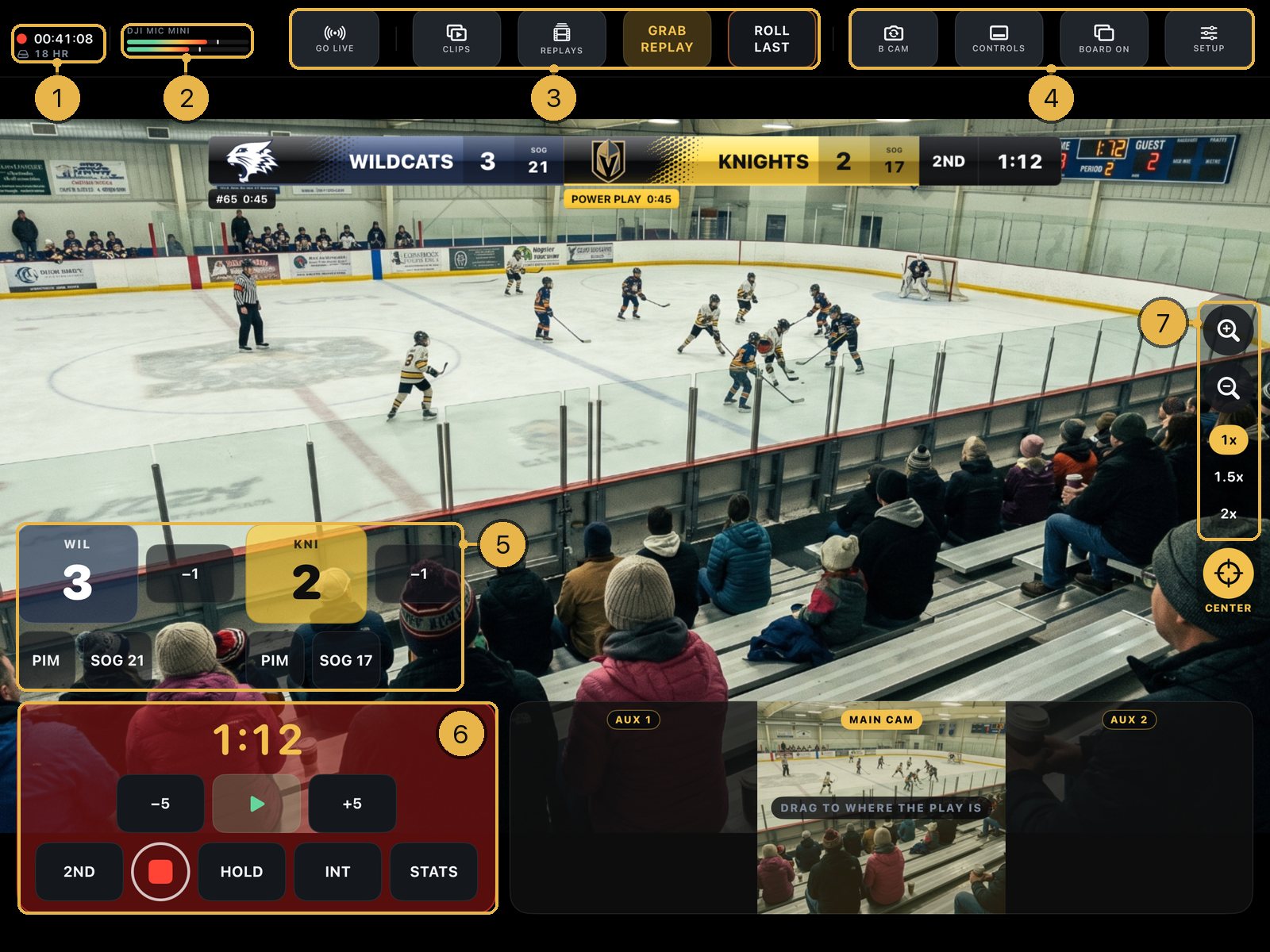
- iPad, top bar, far left: the record status. It reads OFF or READY. While you record, it shows a red dot and the running time. On hold, it shows the time and HELD. Under it are the recording time left (MIN or HR) and the battery.
- iPad, top bar, next: the sound meter. Tap it to Mute, or to pick a mic under Input.
- iPad, top bar, middle: GO LIVE, CLIPS, REPLAYS, GRAB REPLAY and ROLL LAST.
- iPad, top bar, right: B CAM (the front camera, for an interview), CONTROLS (hides or shows the score and clock buttons), BOARD ON / BOARD OFF (shows or hides the scoreboard) and SETUP.
- iPad, bottom left and right: the home and away teams. With the Touch Track pad on this device, both sit side by side at the bottom left. Tap a team's big score tile to add a score. Tap −1 to take one back. Sport buttons sit under it (for hockey, PIM and SOG).
- iPad, bottom middle: the clock box. It has the clock, −5, play/pause, +5, the period button, the red record button and INT. HOLD shows there while you record, and STATS when game stats are on.
- iPad, right edge: zoom. Hold the magnifier + or − button to zoom. Tap 1x, 1.5x or 2x to jump.
- iPhone, top left: the red record button, with GO LIVE under it.
- iPhone, right side: START above the two team score tiles. START runs the game clock. It does not record. Tap a team tile to add a score. The zoom buttons sit to the left of the tiles.
- iPhone, bottom right: GRAB REPLAY, ROLL LAST, REPLAYS, CLIPS and DECK ▲.
- iPhone: tap DECK ▲ for everything else: −1, penalties and shots, −5, play/pause, +5, the period button, INT, HOLD, B CAM, MUTE and SETUP. Tap DECK ▼, or the picture above the Deck, to close it.
- iPhone, bottom left: a status bar with the recording time, time left and battery. It turns red while you record. Windows for extra cameras show above it once they connect.
Good to know
- CONTROLS and BOARD ON / BOARD OFF are on iPad only.
- CONTROLS hides the score and clock buttons. The red record button stays on screen, and so does HOLD while you record.
- On iPad, if the board sits at the bottom of the picture, the score and clock buttons move to the top.
- If replays are turned off, the GRAB REPLAY spot reads ARM REPLAY on iPad. Tap it to turn replays on (Pro).
- The score and clock buttons change by sport. Baseball has no clock, for example.
- Messages like "Saved to Photos" show near the top on iPad and near the bottom on iPhone.
- NO AUDIO in the sound meter means the mic dropped. MUTED means you muted it.
How do I record the game?
Tap the red record button to start. Tap it again to stop. The game saves to Photos on its own.
- Aim the camera and check the picture and the board. On iPad, the status at the top left says READY.
- Tap the red record button. On iPad, it is in the clock box. On iPhone, it is at the top left.
- Check that it is recording. On iPad, the status shows a red dot and the running time, and the clock box turns red. On iPhone, the status bar at the bottom left turns red.
- When play starts, start the game clock. On iPad, tap play in the clock box. On iPhone, tap START.
- To stop, tap the red record button again. It shows a square while it records.
- If the app asks to add videos to Photos, tap Allow. It asks the first time it saves to Photos.
- Wait for "Saving to Photos…" and then "Saved to Photos" with the file size.
Good to know
- Starting the clock does not start recording. Going live does not record either. Only the red button records.
- Said no to Photos? The game is still safe. Open the Files app → On My iPad (On My iPhone on an iPhone) → Dad Sports.
- Leaving the app (going to the home screen or another app) stops and saves the recording. Pulling down Control Center or notifications does not.
- If storage is too low, the app won't start and says "Not enough storage to record — free up space first."
- Keep an eye on the time left (MIN or HR) next to the battery.
- Sport and record quality are locked while you record or stream.
- To find the game later, see "Where do my recorded games go?"
How do I pause the recording for a break, then keep going?
Tap HOLD to pause. Tap RESUME to start again. You still get one file, with the break cut out.
- While you record, tap HOLD. On iPad, it is next to the red record button. On iPhone, tap DECK ▲, then HOLD.
- The button now reads RESUME. On iPad, the top bar says HELD.
- Tap RESUME to keep recording.
Good to know
- The paused time is cut out. The game is one file with no gap.
- HOLD pauses the recording only. It does not stop the game clock. If you are live, the stream keeps going.
- HOLD and stop don't work for one second after you start. This keeps a double tap from ending your game.
- On iPad, HOLD shows only while you record.
- The remote can't start, pause or resume the recording. It shows REC or HELD at the top so you know what is happening.
- When game stats are on the broadcast, the remote shows END BROADCAST. That button ends the game and stops the recording.
- On iPad, if you tap CONTROLS to hide the buttons, the red button and HOLD stay on screen.
- In baseball, the iPhone Deck has no HOLD button.
How do I get ready for the next game? What if the app closed mid-game?
Use New game in Setup. It clears the score, clock, period, penalties and stats. Your teams, colors, logos and settings stay. If the app closed during a game, it offers to pick up where you left off.
- Stop recording first.
- Tap SETUP. On iPhone, tap DECK ▲, then SETUP.
- Scroll to the bottom. Tap New game.
- Tap Clear the board. Setup closes and the board is clear.
- Need to change Home / Away or the opponent? Open SETUP again and go to Today's game.
- If the app closed during a game, you see GAME IN PROGRESS the next time you open it. Tap Resume game to get the score and clock back, or tap New game to start clean.
- After Resume game, tap the red record button to record again.
Good to know
- New game is grayed out while you record.
- The video up to the moment the app closed stays on the device. Find it in SETUP → Your games or in the Files app.
- Resume game does not restart the recording. You start a new one with the red button.
8 answersTeams and rosters
How do I set up my team's name, colors and logo?
On the main device, open SETUP, tap the HOME tile under Today's game, tap Add a team, and fill in the TEAM box. Team names, colors and logos are part of Pro.
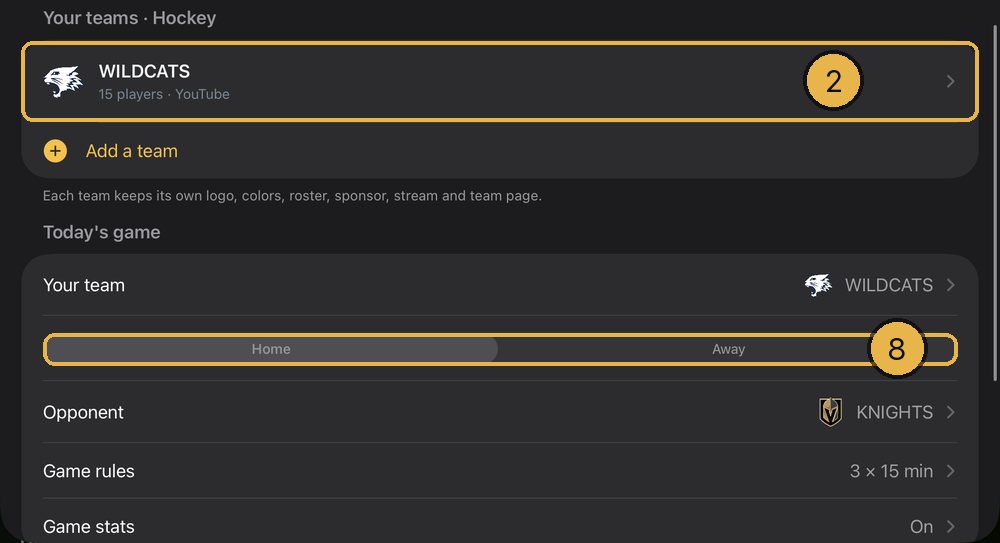
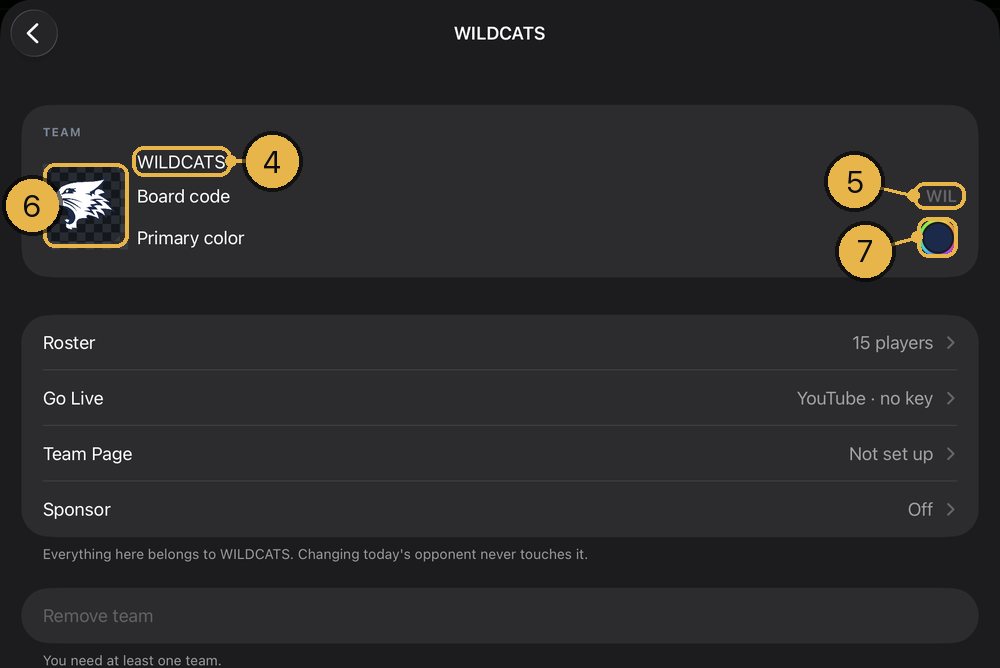
- On the main device, tap SETUP. On iPad, it is at the right end of the top bar. On iPhone, tap DECK ▲ at the bottom right, then SETUP.
- Under Today's game, tap the HOME tile. If your team plays away, tap AWAY.
- Tap Add a team. A team called NEW TEAM opens, already on the board.
- Tap the name at the top of the TEAM box and type your team's name. It fits up to 15 characters, and spaces count.
- In Board code, type the letters the board shows. Leave it blank and DSN makes one from the name. The gray letters show what it will use.
- Tap the Logo square and pick your logo from Photos. DSN picks your team color from the logo.
- To pick a different color, tap Primary color.
- Go back and tap Done.
Good to know
- Pro only. Without Pro, the row reads Team name, colors and logo with a PRO tag, and the board shows HOME and AWAY in blue and red.
- The board shows up to 3 letters of the board code.
- Setup is only on the main device. A camera or a remote can't change teams.
- Your logo needs to be in Photos first. A logo with a see-through background looks best. The checkered squares behind it show the see-through parts.
- To take the logo off, press and hold it, then tap Remove logo.
- The score buttons on the main device use the team color too.
- Each sport keeps its own teams. A hockey team does not show up in soccer.
- Swap Home and Away before the game starts. After that, tap New game at the bottom of Setup to change it.
- For the other team, see "How do I set up the other team, and save it for next time?"
- Already have a team? Tap it in the same list instead of Add a team.
How do I add my roster?
In SETUP, tap Teams, open your team, tap Players, and add each player with Add player. Each player needs a number. Names are optional.
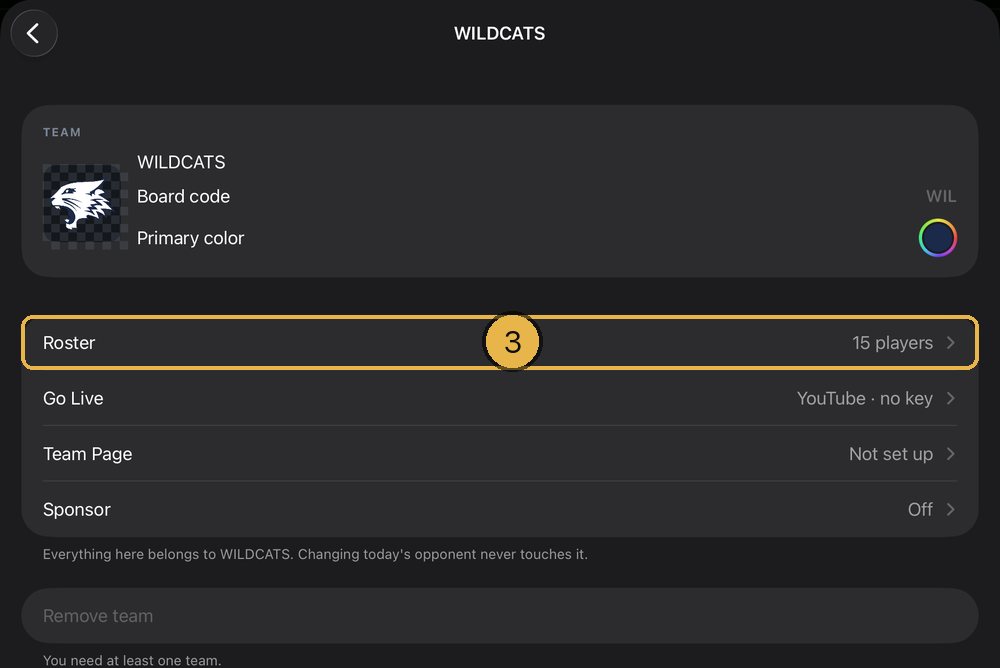
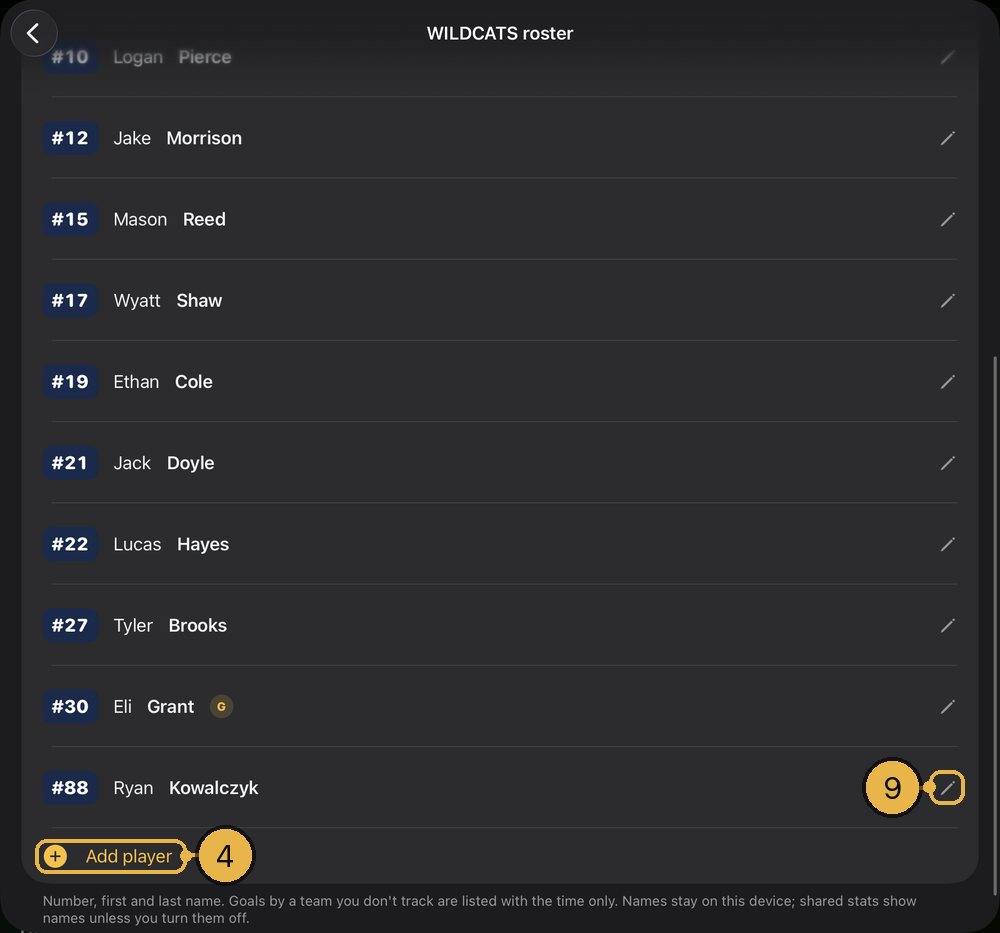
- On the main device, tap SETUP.
- Tap Teams, then tap your team.
- Under Roster, tap Players.
- Tap Add player.
- Type the Number.
- Type First name and Last name if you want them.
- If the player is a goalie, turn on Goalie.
- Tap Save at the top right. Players line up by jersey number.
- To fix a player, tap their row, change it, and tap Save.
- To remove a player, swipe left on the row. Or tap the player and tap Delete player.
Good to know
- To add the whole team at once, copy the cells in Numbers, Excel or Google Sheets, then tap Paste in Players.
- Save stays gray until you type a number.
- The Goalie switch shows for hockey, ringette, lacrosse and soccer. Goalies show a G on the roster.
- The first goalie on the roster starts the game in net.
- The roster stays with the team. Switch teams and back, and the roster comes back.
- Names stay on this device.
- To add the other team's roster: go to Today's game, then Game stats. Turn on Keep game stats and set Track scorers for to Both. Then tap the roster row with the other team's name.
- You can attach goal clips to a player here, under Goal clips. Goal clips come from your CLIPS bin, which is Pro. See "How do I make a player's clip play when they score?"
Can I have more than one team? How do I pick which one plays today?
Yes. In SETUP, tap Teams, then Add a team. Then pick who plays today under Today's game: tap the HOME or AWAY tile, then tap a team.
- On the main device, tap SETUP.
- Tap Teams, then tap Add a team at the top right. A team called NEW TEAM opens.
- Set its name, logo and roster. It can also get its own team page.
- To change who plays today, go back to the main Setup page. Under Today's game, tap the HOME or AWAY tile.
- Tap the team you want. A check mark shows which one is playing.
- To trade Home and Away, tap SWAP.
- Tap Done.
Good to know
- Adding a team is Pro only.
- You can also tap Add a team at the bottom of the HOME or AWAY list. That team goes on the board right away.
- Each team keeps its own logo, colors, roster and goal clips. A team with a team page also keeps its own page and sponsor, and can stream to its own channel.
- While you record or are live, you can't change which team page team is playing. Stop first.
- Delete team is at the bottom of a team's page. In Teams, you can also swipe left on a team. A team playing today can't be deleted, and its team page must be taken down first. Its logo, roster and sponsor go with it. Your clips and recorded games stay.
How do I set up the other team, and save it for next time?
Go to SETUP, then Today's game, and tap the other team's tile. Tap Add a team and fill in their name, code, color and logo. DSN keeps the team in Teams for next time.
- On the main device, tap SETUP.
- Under Today's game, tap the other team's tile, HOME or AWAY.
- Tap Add a team. A team called NEW TEAM goes on the board and opens.
- In the TEAM box, type the team name. Set the Board code, logo and Primary color the same way you did for your team.
- Next game, tap that tile again and tap the team. A check mark shows which one is playing.
- To change a team, tap Teams, tap the team, and make your changes.
- To delete a team, swipe left on it in Teams.
Good to know
- Pro only: adding a team, and its name, colors and logo. Without Pro, Add a team shows a PRO tag.
- Picking the team on the other side trades Home and Away, before the game starts.
- Changing today's opponent never touches your own team's settings.
- Your own teams and the teams you play are all in one list, in Teams.
- Teams are kept per sport.
How do I turn on game stats so I can pick who scored?
Go to SETUP, then Today's game, then Game stats, and turn on Keep game stats. Pick whose scorers you track, and add that team's roster.
- On the main device, tap SETUP.
- If your team plays away, check that it is in the AWAY tile under Today's game first. If not, tap SWAP.
- Under Today's game, tap Game stats.
- Turn on Keep game stats.
- Under Track scorers for, pick whose goals you want to name. The first choice is the home team's board code. The second is the away team's. Both tracks both teams.
- If a roster row says Add players, tap it and add your players.
- Go back to the main Setup page and tap Done.
Good to know
- Pro only. Without Pro, the row reads Game stats with a PRO tag.
- Only for hockey, soccer, lacrosse and ringette. Other sports don't show this row.
- It is off until you turn it on. It is set per sport.
- A STATS button now shows on the main device. On iPad, it is in the clock box, next to INT. On iPhone, tap DECK ▲ to find it.
- The pick-the-scorer box only opens for a team you track that has a roster.
- When you tap SWAP, DSN moves tracking with your team for you.
After a goal, how do I pick the scorer and assists?
Add the goal on the board. A box with your players' numbers pops up. Tap the scorer, tap up to two players who assisted, then tap Done.
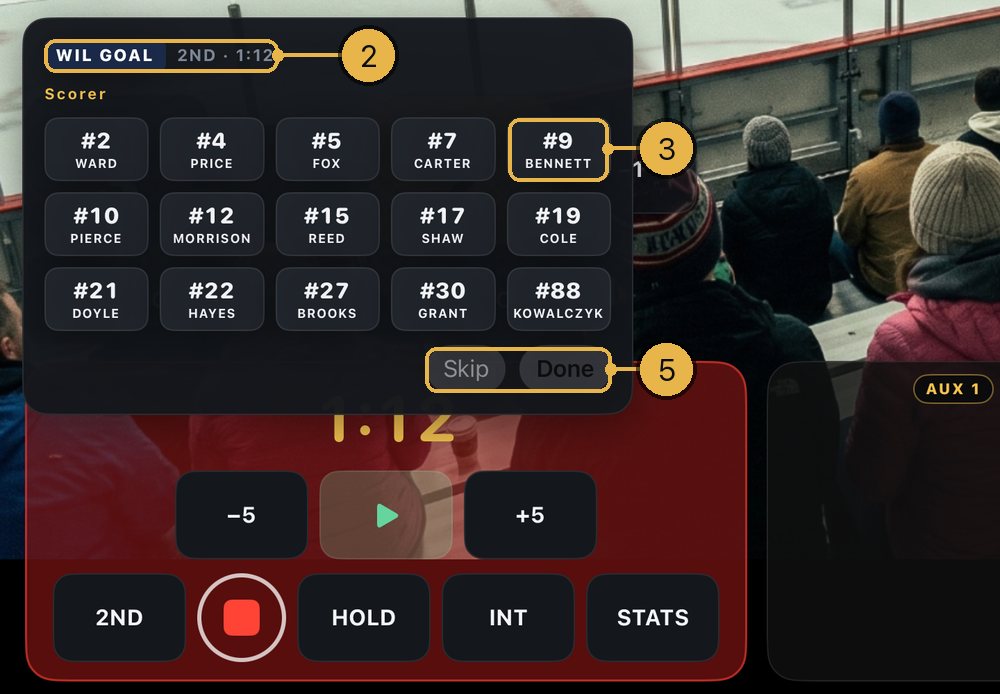
- Tap the team's score button to add the goal, on the main device or the remote.
- A box opens with the team code, GOAL and a tile for each player. On iPad, it shows above the scoring team's side. On iPhone, it shows near the bottom. On the remote, it covers the score buttons.
- Tap the scorer's number.
- It now asks for Assist 1 of 2. Tap up to two players who assisted. Tap one again to take it off.
- Tap Done. If nobody assisted, tap No assist. If you don't know who scored, tap Skip.
- To fix a goal later, tap STATS and tap the goal. Change the names and tap Done.
Good to know
- Tap the scorer again to change the scorer.
- The box closes by itself after 10 seconds with no tap. The goal stays on the stats, and you can name the scorer later from STATS.
- In STATS, Clear goal takes the names off that goal. Cancel leaves it as it was.
- Tapping −1 also takes that team's last goal off the stats.
- Goals by a team you don't track show with the time only.
- Goal clips are Pro. If the scorer has a goal clip and Play the goal clips is on (SETUP, then Clips and Replays), the button reads Done · play clip. Tapping it plays their clip. See "How do I make a player's clip play when they score?"
- If Then play the goal replay is on (SETUP, then Clips and Replays), the replay plays after you pick the scorer.
How do I see the stats, share them, or put them on the broadcast?
Tap STATS any time during the game. From there you can change goalies, share a picture, or tap Roll on air to show the stats on the stream.
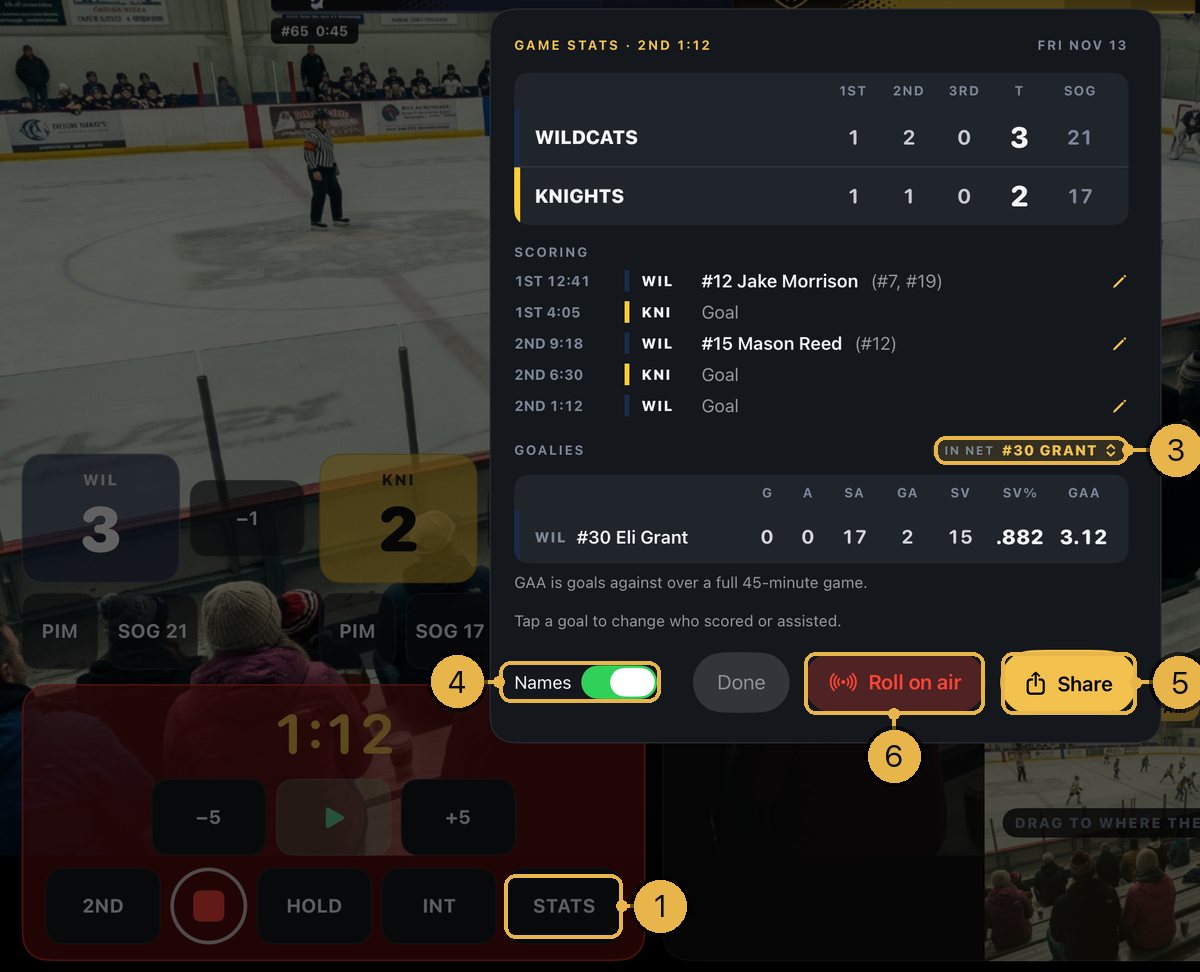
- Tap STATS. On iPad, it is in the clock box, next to INT. On iPhone, tap DECK ▲, then STATS. On the remote, it is in the row of buttons with INT.
- You see the score by period, shots, every goal, and the goalies.
- To change goalies, tap the IN NET chip. Pick the goalie going in, or pick Empty net · goalie pulled.
- Turn the Names switch off to show numbers only.
- Tap Share to send the stats as a picture.
- Tap Roll on air to put the stats over the middle of the stream and the recording.
- To take them off, tap STATS, then Take off air. On iPhone, you can also tap STATS ON AIR.
- When the game ends, a GAME STATS button (with FINAL above it) shows in the middle of the screen. Tap it for the final stats, then tap Done.
Good to know
- Pro only, and only when Keep game stats is on.
- While the stats are on air, the iPad shows STATS ON PROGRAM over the picture. The iPhone shows STATS ON AIR under GO LIVE.
- While the stats are on air, END BROADCAST shows next to them. It ends the game, the recording and the live stream at once. It asks first.
- After the final stats, if the game has replays or goals, DSN offers to make your recap.
- Goalie stats show only after you turn on Goalie for a player in the roster.
- Goalies get G, A, SA, GA, SV, SV% and GAA. Soccer keepers get G, A, GA and GAA, and CLEAN SHEET for a shutout.
- Saves and SV% need shots counted on the board.
- Change goalies from STATS during the game. The final card does not change goalies.
- Names are on unless you turn them off. One Names switch covers the card, the picture and the stats on air.
- The remote can do all of this too.
How do I make a team page for our families?
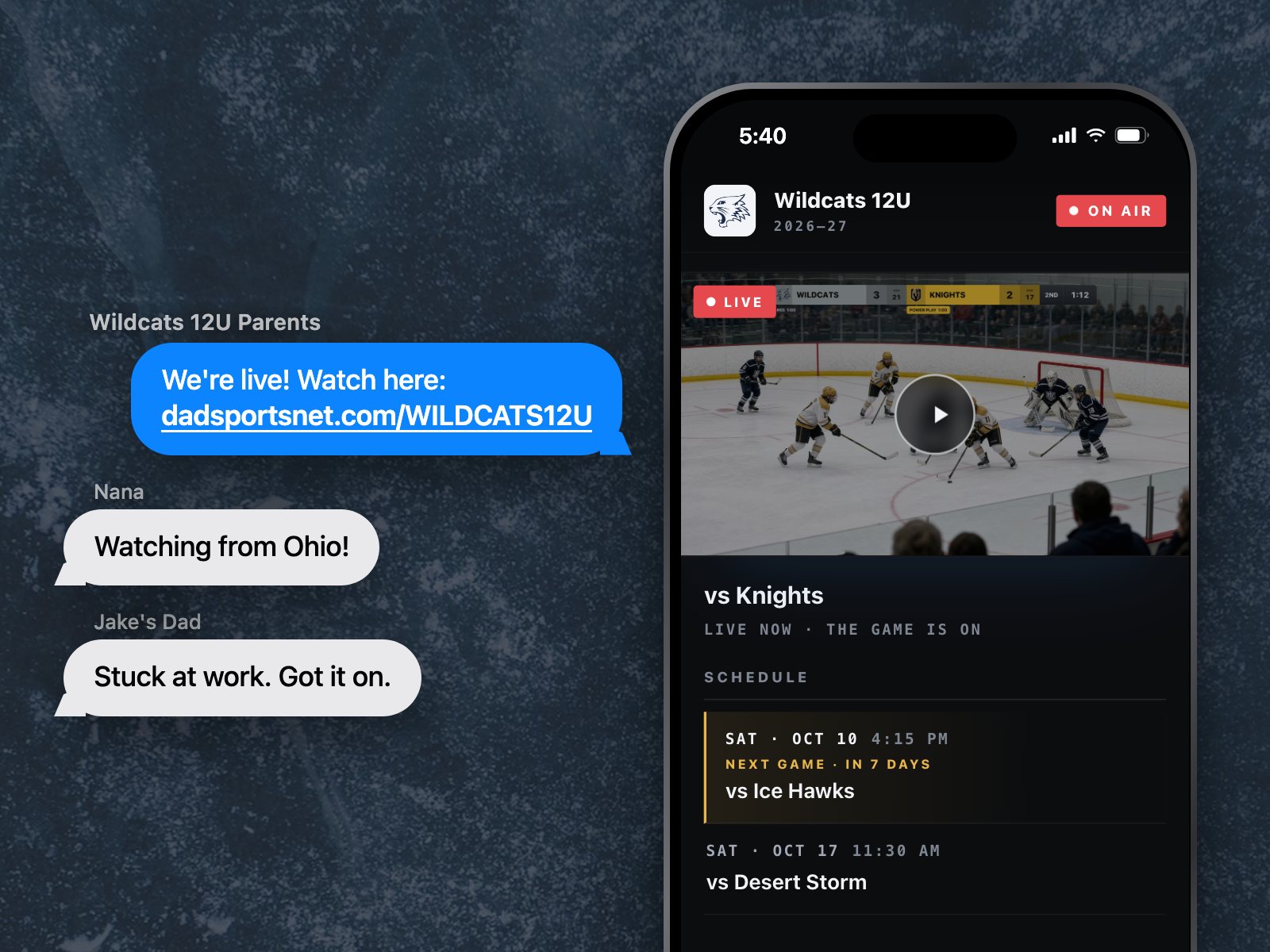
In SETUP, tap Teams, open your team, and tap Page. Pick an address, add your YouTube channel, and tap Publish page.
- On the main device, tap SETUP.
- Tap Teams, then tap your team. Under Team Page, tap Page. No Page row? Tap the gold row that starts with Give.
- In Page address, type a code after dadsportsnet.com/. Use 3 to 16 letters and numbers. Wait until it says Available.
- In YouTube channel, type your channel, like @yourchannel. Wait until it says Found.
- Check the Team name, Logo and Season. Tap Change to pick a different logo.
- Tap Publish page.
- Use Share link or Copy to send the link to families. Tap Open page to see it.
- Tap Next game to set the date and the opponent, then tap Save.
Good to know
- Pro only. Without Pro, it shows a PRO tag.
- Your first team page comes with DSN Pro. Each extra team page costs extra each month.
- Each of your teams can have its own page, playing today or not.
- Publish page stays gray until the address says Available and the channel says Found.
- The page goes ON AIR by itself when you go live on YouTube. Past games show up once YouTube saves them.
- Families don't need the app or an account. The page is hidden from Google and never shows player names.
- If the address or name looks like a club, it says Organization · needs verification. The button then reads Request verification, and you fill in Contact name, Role and Email. DSN checks with the club before the page goes live.
- To remove it, tap Take page down. The address stays yours if you publish again.
8 answersLive streaming to YouTube and Facebook
How do I stream a game to YouTube?
Copy your stream key from YouTube once. Paste it into DSN on the main device. We recommend scheduling each game on YouTube ahead of time. Then tap GO LIVE at each game.
- Do this the day before your first game. The first time, YouTube can take up to 24 hours to turn on live streaming for your channel. Your channel must be verified first.
- On a computer, go to youtube.com. Click Create at the top right, then Go Live. That opens YouTube Studio. Click the Stream tab. First stream ever? Click Edit, then Create stream.
- At the top of that page, just above the black preview box, find the line that reads "Key: Default stream key". Press the copy button next to it.
- Do not copy the "Stream URL" further down the page. DSN already has it.
- On the main device, open Setup. On iPad, tap SETUP in the top bar. On iPhone, tap DECK ▲ in the bottom right corner, then tap SETUP.
- Under Go Live, tap Your channel.
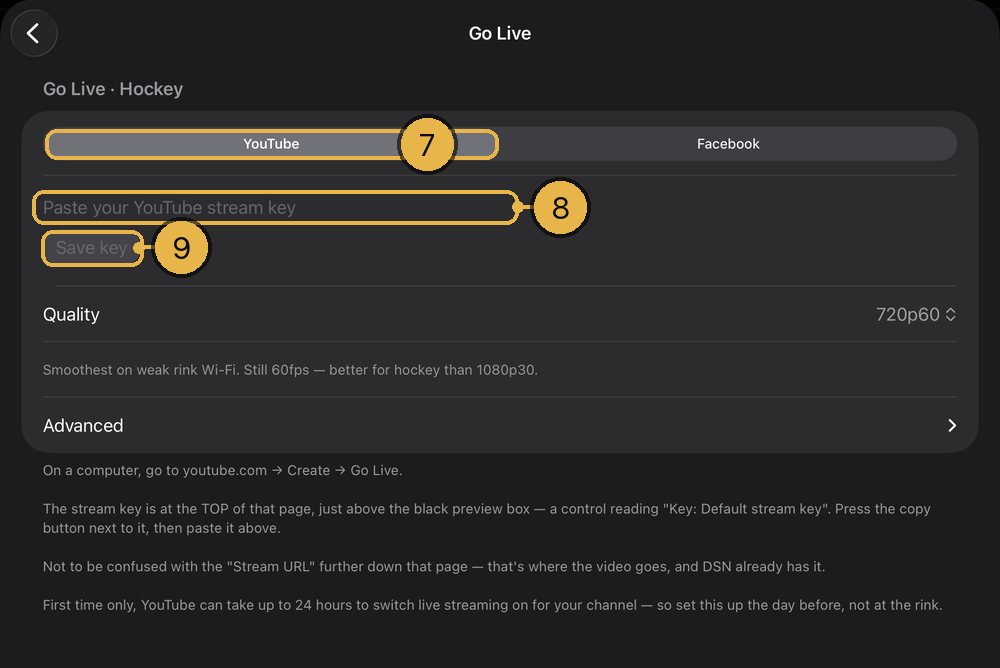
- At the top of the Your channel page there is a switch with two choices. Tap YouTube.
- Tap the box that reads "Paste your YouTube stream key" and paste the key.
- Tap Save key. You will see "Stream key saved", with dots and the last 4 characters of your key.
- Tap back at the top left until you reach the Setup page. Then tap Done.
- Recommended: schedule each game ahead of time. In YouTube Studio, click Manage, then Schedule stream, and pick the same stream key you pasted into DSN. At the game, tap GO LIVE in DSN, then click Go live in YouTube Studio once the preview shows.
Good to know
- You never sign in to YouTube inside DSN. The stream key is all DSN needs.
- Going live is part of DSN Pro. You can paste your key on the free plan, but GO LIVE opens the Pro page until you go Pro.
- The key is saved on this device only. It does not go to your other devices or to a backup. If you change main devices, paste the key again.
- Each sport keeps its own key. If you already saved a key for another sport, DSN shows a button like "Use the Hockey key". Tap it to use that same key.
- Every game streams to Your channel. A team with a team page can stream to its own channel instead: tap Teams, tap the team, tap Go Live, then pick its own channel and paste its key. You can't change where a game streams while you are live.
- To change the key later, tap the round ⋯ button next to "Stream key saved", then tap Replace key. Remove key takes the key off this device.
- A scheduled stream starts when you click Go live in YouTube Studio, or by itself if you turn on Auto-start for it. Without a scheduled stream, you go live as soon as you tap GO LIVE in DSN.
- If you are 18 or older, YouTube makes your stream public unless you change it to unlisted or private.
How do I stream a game to Facebook?
Turn on a persistent stream key on Facebook. Paste that key into DSN on the main device. At each game, tap GO LIVE in DSN, then click "Go Live Now" on Facebook.
- On a computer, go to facebook.com/live/create.
- Under "Choose where to post", pick your page or profile.
- Click "Go live", then choose "Streaming software".
- Open "Advanced Settings" and turn on "Persistent stream key". This lets the same key work every game.
- Copy the "Stream key". Leave the "Server URL" alone. DSN already has it.
- On the main device, open Setup. On iPad, tap SETUP in the top bar. On iPhone, tap DECK ▲ in the bottom right corner, then tap SETUP.
- Under Go Live, tap Your channel.
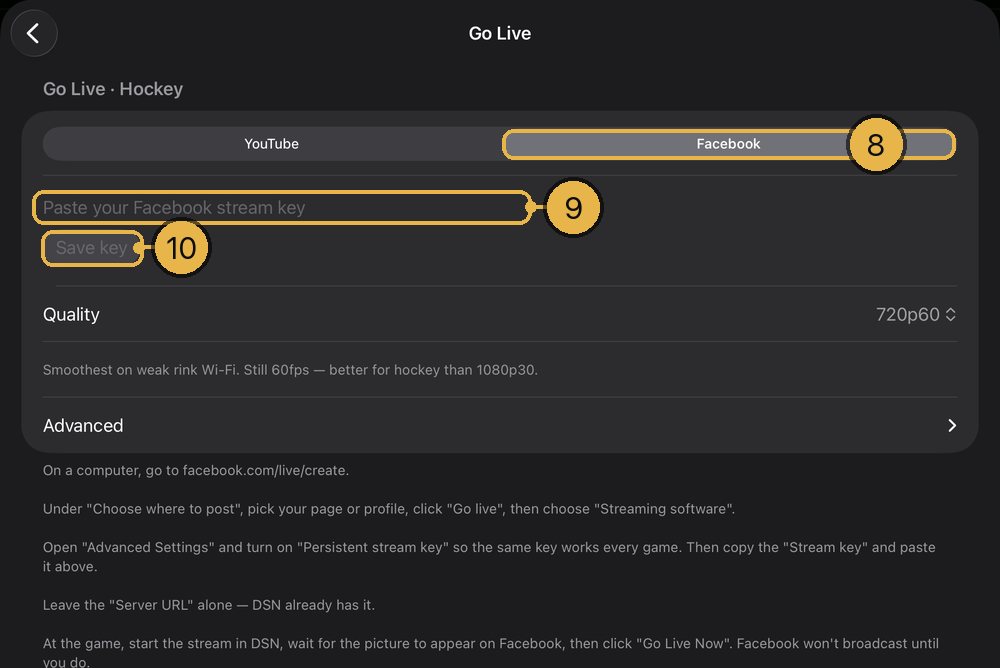
- At the top of the Your channel page there is a switch with two choices. Tap Facebook.
- Tap the box that reads "Paste your Facebook stream key". Paste the key.
- Tap Save key.
- At the game, tap GO LIVE in DSN. Wait for the preview to show up on Facebook. Add a title, then click "Go Live Now".
Good to know
- You have to click "Go Live Now" on Facebook every game. Your game goes live on Facebook only after you click it.
- Going live is part of DSN Pro.
- YouTube and Facebook each keep their own key. Switching to Facebook does not erase your YouTube key.
- Facebook keys can be long and can have marks like ? & = in them. That is fine. Paste the whole thing.
- At 1080p, DSN sends Facebook a little less data than YouTube, to stay under Facebook's limits. It does this by itself.
- The team page works with YouTube only. A Facebook stream will not show on it.
- To stream with DSN, your Facebook account must be at least 60 days old, and your Page or professional profile needs at least 100 followers.
- With a persistent key, you can run only one live video at a time.
How do I go live during a game?
On the main device, tap GO LIVE. When the button turns red and a note says "Live on YouTube" (or Facebook), you are live.
- Set up your stream key first (see the YouTube or Facebook question).
- DSN streams to Your channel, unless a team playing today has its own channel. If both teams do, pick one first: SETUP, then Today's game, then Stream to.
- Tap GO LIVE on the main device. On iPad, it is in the top bar, just left of CLIPS. On iPhone, it is in the top left, under the red record button.
- While it connects, the button reads STARTING on iPad, or CONNECTING… on iPhone.
- When the stream is on, the button turns red and reads LIVE. On iPad, END LIVE shows under it.
- Read the note, like "Live on YouTube · Hawks · key ending 7Q2X". Check that the team and the last 4 characters are the ones you meant.
- Scheduled the game on YouTube (recommended)? Now click Go live in YouTube Studio once the preview shows.
- Streaming to Facebook? Now click "Go Live Now" on Facebook's page.
- Want to keep a copy of the game too? Tap the red record button. Going live does not record.
Good to know
- Going live is part of DSN Pro.
- DSN never starts a stream by itself. Tap GO LIVE at every game.
- The note shows near the top on iPad and near the bottom on iPhone.
- Only the main device sends the stream. Cameras and the remote do not need their own key.
- A camera's screen has its own GO LIVE button. That one puts the camera's picture on air. It does not start the stream.
- A remote shows LIVE in red at the top of its screen while you are live.
- LIVE means YouTube or Facebook took your key. DSN can't see if your channel is really showing the game. The first time, check your channel on another screen.
- While you are live, you can't change the sport, or switch in a team that changes where the game streams. End the stream first.
- The stream shows what is on air: the picture, the scoreboard, and the replays and clips you play.
How do I end the live stream?
Tap the red live button on the main device, then tap End broadcast. The recording keeps going until you stop it.
- On the main device, tap the red live button. On iPad, it is in the top bar and reads LIVE, with END LIVE under it. On iPhone, it reads LIVE, in the top left.
- DSN asks "End the live broadcast?". Tap End broadcast. Tap Keep streaming if you tapped it by mistake.
- If you are recording, stop it with the red record button when you are ready.
Good to know
- DSN always asks before it ends a stream, so a stray tap does not cut off your viewers.
- Ending the stream never stops the recording. Only END BROADCAST stops both.
- If you keep game stats: roll the stats on air at the end of the game, and a red END BROADCAST button shows beside them. It ends the game, the recording and the live stream at once. It asks "End the broadcast?" first. A remote shows END BROADCAST too, while the stats are on air.
- Game stats is part of Pro, and only some sports have it.
- After END BROADCAST, if the game has replays or goals, DSN asks you to pick the plays for your recap.
- Removing your stream key in Setup also ends a stream that is running.
- On YouTube, ending the stream in DSN ends it there too. If you scheduled the stream on YouTube, also click End Stream in YouTube Studio.
What internet do I need, and which quality should I pick?
Only the main device needs internet to go live. Pick 720p60 unless you know the upload speed is strong.
- On the main device, open SETUP. Under Go Live, tap Your channel.
- Tap Quality.
- Pick 1080p60, 720p60 or 1080p30. The line under it says what each one is for.
Good to know
- 720p60 is where DSN starts. The app says: "Smoothest on weak rink Wi-Fi. Still 60fps — better for hockey than 1080p30."
- Pick 1080p60 only if the connection is strong. The app says it "Needs a solid 12 Mbps up — check the rink Wi-Fi first."
- 1080p30 makes sharper still pictures, but fast play will smear. The app suggests 720p60 instead.
- A new choice starts the next time you tap GO LIVE.
- Cameras and the remote link to the main device, not to YouTube or Facebook.
- DSN uses whatever internet connection the main device has. It does not pick Wi-Fi or cell for you.
- If the stream keeps dropping, step down to 720p60.
- Leave the Stream URL under Advanced as it is.
- Stream quality is set apart from recording quality. Recording quality is under SETUP, in Camera & recording, under Export.
I tapped GO LIVE and it didn't work. What do I check?
Read the message DSN shows. On iPad it is near the top of the screen. On iPhone it is near the bottom. It tells you what is wrong. Fix that, then tap the button again.
- The Pro page opened, or you see "Going live is part of DSN Pro. Stop recording, then tap Go Live to see the plans." Going live needs DSN Pro.
- You see "Add your YouTube stream key in Setup first." (or Facebook). Paste your key: SETUP, then Your channel, under Go Live. If the message names a team, paste that team's key: SETUP, then Teams, then the team, then Go Live.
- You see "Couldn't go live." and a reason, and the button reads RETRY LIVE. Check the internet on the main device and check your key. Then tap RETRY LIVE.
- Save key stays gray. The key is too short, or it has a character a key can't have. Go back to YouTube or Facebook and use its copy button.
- You see "That key couldn't be saved. Check it and try again." Paste the key again and tap Save key.
- DSN says LIVE but nobody can see it on Facebook. Click "Go Live Now" on Facebook's page.
- The game went to the wrong channel. Look at the "Live on…" note for the team and the last 4 characters of the key. End the stream. Check the teams under Today's game, and Stream to if you see it, or replace the key.
- First time on YouTube? It can take up to 24 hours for YouTube to turn on live streaming for your channel.
- If you changed the Stream URL under Advanced, tap "Reset to YouTube default" (or Facebook) to put it back.
Good to know
- A tap while it is still starting shows "Already starting the stream…". Wait for it.
- A tap while you are live shows "You're already live."
- A stream that fails at the very start does not try again by itself. A bad key or no internet will not fix itself.
What happens if the Wi-Fi drops while I'm live?
DSN keeps trying to get back on, for as long as it takes. Your recording is not touched.
- If the stream drops, a red banner says "Stream dropped — reconnecting." If you are recording, it adds "The recording is unaffected."
- The iPad top bar shows an orange note like "RECONNECTING · 4s" or "RECONNECTING · try 3". On iPhone, the red live button shows the same words.
- You don't need to tap anything. DSN tries again after 1, 2, 4, 8, 15 and 30 seconds, then every 30 seconds until it gets back on or you end the stream.
- When it is back, a note says "Back live" and the red banner goes away.
- To stop trying, tap END LIVE on iPad, or the live button on iPhone. Then tap End broadcast.
Good to know
- A dropped stream never stops or harms the recording.
- If the stream gets stuck or falls far behind, DSN starts a fresh connection by itself.
- On weak Wi-Fi, DSN lowers the stream quality by itself, with no message. It raises it again when the Wi-Fi gets better. Your recording and your screen do not change.
- A remote shows RECONNECTING in orange at the top of its screen while the stream is down.
- This only works once the stream has started. If the very first try fails, DSN does not keep trying. See "I tapped GO LIVE and it didn't work. What do I check?"
Can I stream to Twitch or another site?
No. DSN streams to YouTube or Facebook, one at a time. Those are the only two choices.
- To see the choices, open SETUP. Under Go Live, tap Your channel. The switch at the top shows YouTube and Facebook.
Good to know
- You can stream to one place at a time, not both at once.
- The Stream URL box under Advanced is not for other sites. The app says to change it only if streaming fails and YouTube or Facebook gives you a different address.
8 answersYour own clips
How do I add my own clips?
On the main device, tap CLIPS, then tap +. Pick a video from Photos or Files. DSN copies it in, and it is ready to play.
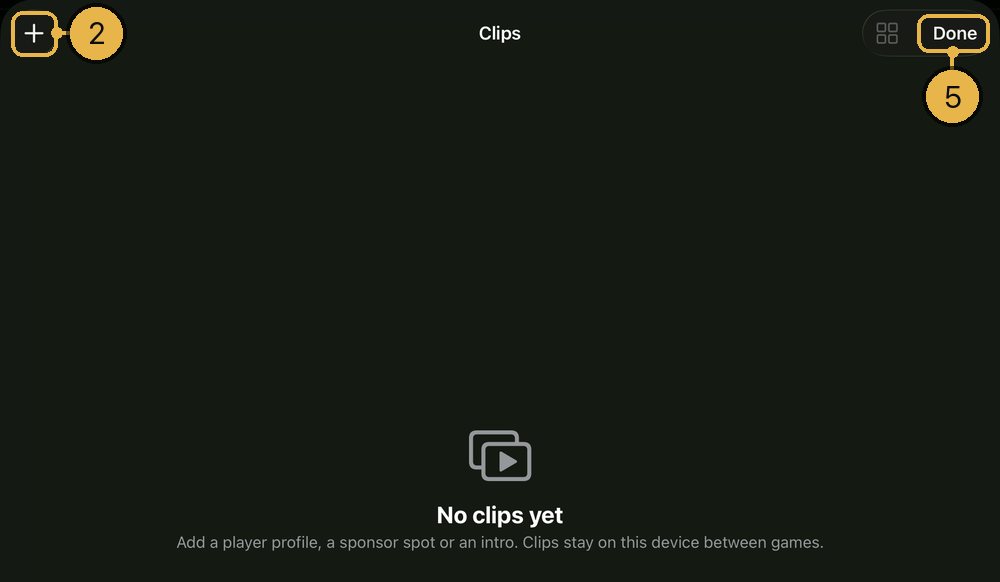
- On the main device, tap CLIPS. On iPad, it is in the top bar, between GO LIVE and REPLAYS. On iPhone, it is in the bottom-right row, next to DECK ▲.
- Tap + at the top left of the Clips screen.
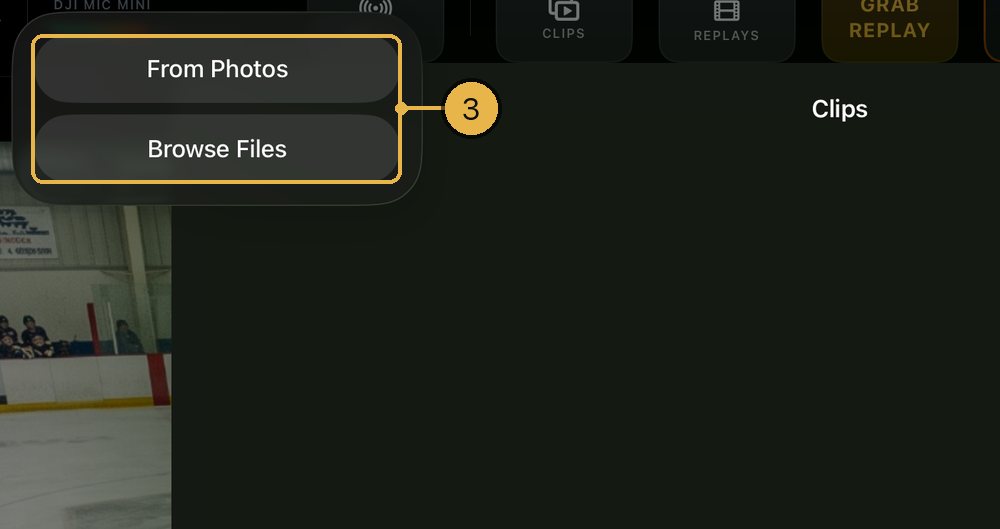
- Tap From Photos or Browse Files.
- Pick a video. DSN copies it in and names it after the file.
- Tap Done at the top right to go back.
Good to know
- Clips are part of Pro. Without Pro, CLIPS is grayed out and opens the Pro screen.
- Clips must be videos. You can't add a picture as a clip.
- Clips play on the stream with no sound. Viewers keep hearing your mic. A clip with music plays without the music.
- A big video takes a moment to copy. The + is grayed out until it is done.
- Clips stay on this device from game to game. Add them on the main device. A remote can't add clips.
- Clips are listed A to Z by name. "Sponsor 2" comes before "Sponsor 10".
- Delete all DSN data on this device (SETUP → About & data) deletes your clips too.
How do I play a clip on the stream?
Open CLIPS and tap ROLL on the clip. It goes out live and into the recording. The game comes back when it ends.
- On the main device, tap CLIPS.
- To check a clip first, tap its picture (it says PREVIEW). Only you see it. Tap Done to go back.
- Tap ROLL on the clip you want. You can also tap ROLL on the preview screen.
- The Clips screen closes and the clip plays. On iPad, the main device's screen says CLIP ON PROGRAM. Viewers don't see that label.
- When the clip ends, the live game comes back by itself.
- To stop a clip early on iPad, tap CUT LIVE in the top bar. It sits where GRAB REPLAY usually is.
Good to know
- On iPhone there is no CUT LIVE. A clip plays to its end.
- The scoreboard comes off while a clip plays and comes back after. Your sponsor logo stays on.
- Clips play without the replay card that comes before and after a replay.
- ROLL is grayed out while a replay or another clip is playing.
- After a clip plays, it shows ROLLED and how long ago, and it fades a little.
- While you record or stream, the preview starts muted so the mic doesn't hear it. The button says Sound off. Tap it to hear the clip.
- A tall (portrait) video plays upright, with black bars on the sides.
- The preview screen also has SHARE, to send the clip to someone.
How do I loop a clip until I stop it?
Tap LOOP instead of ROLL. The clip repeats on the stream until you stop it.
- On the main device, tap CLIPS.
- In the list, tap LOOP, just left of ROLL. In the grid, tap the small round loop button at the top left of the clip's picture.
- The Clips screen closes and the clip plays over and over. On iPad, the CLIPS button now says LOOPING.
- To stop, open CLIPS again and tap STOP on that clip. In the grid, tap the red stop button on its picture.
Good to know
- On iPad you can also tap CUT LIVE in the top bar.
- A loop also ends when something else goes on air, like a replay, a goal clip or a cut to another camera. It does not start again by itself.
- While a clip loops, the other clips' ROLL and LOOP are grayed out. Stop the loop before you roll a different clip.
- On iPhone, the CLIPS button does not change while a clip loops. Open CLIPS to find STOP.
- Use it for a pre-game intro or a sponsor spot during a break.
Does DSN make goal clips for my team?
Yes. Add your team's logo and DSN makes its goal clip. Add your players' names and each one gets a scorer graphic. After a goal: the team clip, then the scorer, then the replay.
- On the main device, tap SETUP, then Teams, then tap your team.
- Tap the Logo box and pick your logo from Photos. DSN makes the team clip from the logo and team color. Tap Preview to watch it.
- Tap Players. To add the whole team, copy the cells in Numbers, Excel or Google Sheets, tap Paste, check the list, then tap Add players.
- Go to Today's game, then Game stats, and turn on Keep game stats so DSN asks who scored.
- In the game, add the goal, tap the scorer's number, then tap Done.
Good to know
- Part of Pro. Works for hockey, soccer, lacrosse and ringette.
- No logo? DSN makes the clip from the team's letters.
- Only players with a name get a scorer graphic.
- Pick the scorer after the team clip has played, and the scorer plays after the replay.
- Have your own? Tap Import Your Own from Photos and it plays instead. A player's own clip plays in place of their graphic.
- Turn goal clips off in Setup → Clips and Replays.
How do I make a player's clip play when they score?
Attach clips to the player in your roster. When they score, tap their number as the scorer, then tap Done · play clip.
- Add the clip in CLIPS first.
- Open SETUP. On iPad, it is at the right end of the top bar. On iPhone, tap DECK ▲, then SETUP.
- Under Today's game, tap Game stats.
- Turn on Keep game stats.
- Under Track scorers for, pick your team's board code or Both. The first choice is the home team. The second is the away team.
- Just below, tap your team's roster (it reads your team name, then "roster").
- Tap a player, or tap Add player.
- Under Goal clips, tap Add a clip.
- Tap each clip you want so it gets a check mark.
- Go back and tap Save.
- During the game, when that team scores and you add the goal, a box opens. It says GOAL and Scorer. Tap the scorer's number.
- Tap Done · play clip. The clip plays, then the goal replay if Then play the goal replay is on (SETUP → Clips and Replays).
Good to know
- Works for hockey, soccer, lacrosse and ringette.
- Game stats and goal clips need Pro on the main device.
- Clips with the player's number or name in the title show first, under Suggested. Tip: name a clip like #12 Morrison.
- On the main device, the box closes by itself after 10 seconds with no tap. The clip does not play then.
- Done · play clip only shows when the scorer has a clip. Each goal plays its clip once. Changing a goal later never plays it.
- If a player has more than one clip, DSN plays the one shown longest ago. The next goal gets a different one.
- No assist also plays the clip. Skip closes the box with no clip.
- DSN never attaches a player's own clip by itself. You choose.
- To turn all goal clips off, go to SETUP → Clips and Replays and turn off Play the goal clips. It starts on.
- The box also opens on the remote. Done · play clip works there too.
How do I sort my clips into groups?
Tap ADD TO GROUP under a clip and make a group, like Players or Sponsors. Tabs at the top then show one group at a time.
- Open CLIPS.
- Under the clip's name, tap ADD TO GROUP. In the grid, it says GROUP.
- Tap New group…, type a name, and tap Create. The screen jumps to the new group.
- For the next clip, tap ADD TO GROUP and tap the group's name.
- Use the tabs at the top to pick All or one group.
- To rename a group, press and hold its tab. Tap Rename group, type the new name, and tap Rename.
- To remove a group, press and hold its tab and tap Remove group.
- To take one clip out of a group, tap the group name under the clip, then tap Remove from group.
Good to know
- Groups are optional. The tabs only show up once you make a group.
- Each tab shows how many clips it has.
- Remove group keeps the clips. They stay under All.
- A group with no clips goes away by itself.
- The Clips screen opens on the last tab you used.
- To see big pictures instead of a list, tap the grid button (four small squares) at the top right. Tap it again (it now shows lines) to go back to the list.
How do I rename a clip, change its picture, or delete it?
Tap ⋯ on the clip. Pick Rename, Edit Thumbnail or Delete.
- Open CLIPS.
- Tap ⋯ on the clip. You can also press and hold the clip.
- To rename it, tap Rename, type the new name, and tap Save.
- To change its picture, tap Edit Thumbnail. Slide to the moment you want and tap Use This Frame.
- To delete it, tap Delete. In the list, you can also swipe left on the clip.
Good to know
- Delete happens right away. There is no undo.
- Deleting a clip also takes it off any player it was attached to.
- After a rename, the clip moves to its new A to Z spot.
- The ⋯ menu also has Group, to put the clip in a group or take it out.
Can I play clips from the remote?
Yes. The remote shows the main device's clips and can play, loop and stop them. You add, rename and delete clips on the main device.
- On the remote, tap CLIPS in the bottom row.
- Tap ROLL on a clip, or tap its picture. In the list view, tap the clip's row.
- Tap Play it to put it on air. The Clips screen closes.
- To loop a clip, tap its round loop button (top left of the picture, or at the end of the row). Then tap Loop it.
- To stop a loop, open CLIPS again and tap that clip's stop button.
- Tap Done at the top right to close.
Good to know
- The remote has no preview. The video is on the main device.
- Rename, delete and groups happen on the main device. The remote shows the same groups.
- Playing needs Pro on the main device. Without it, the remote says "Clips are part of Pro."
- The remote can stop a loop, but not a clip that plays once. That clip plays to its end.
- If CLIPS is missing on the remote, update DSN on the main device.
- An empty list on the remote means the main device has no clips yet.
8 answersInstant replays
How do I grab an instant replay?
Tap GRAB REPLAY right after a good play. It saves the last 10 seconds to REPLAYS. You can change the length in Setup.
- Find GRAB REPLAY on the main device. On iPad, it is in the top bar, next to REPLAYS and ROLL LAST. On iPhone, it is in the bottom row, on the right, next to ROLL LAST.
- When something good happens, tap GRAB REPLAY.
- On iPad the button reads SAVING… for a moment. Then a note says "Replay saved · 10s".
- The replay goes into REPLAYS. Its name is the period, the clock and the score at the moment you tapped.
- To change the length, tap SETUP. On iPad, SETUP is in the top bar. On iPhone, tap DECK ▲, then SETUP. Tap Clips and Replays. Under Replay, pick a Replay length: 5s, 8s, 10s, 15s or 20s.
Good to know
- Pro only. Without Pro, tapping GRAB REPLAY opens the Pro screen. On iPad the button is gray. On a remote it is gray and does nothing.
- A remote has GRAB REPLAY too. The replay saves on the main device.
- On iPad, GRAB REPLAY stays dim at first. It lights up once the app has filmed enough for a whole replay.
- "Always ready" (SETUP → Clips and Replays → Replay) is on at first. It keeps the last 30 seconds ready, so the button works right away. It uses more battery.
- If you turn Always ready off, the iPad shows ARM REPLAY where GRAB REPLAY was. Tap ARM REPLAY. GRAB REPLAY comes back, dim, and lights up when it has enough. iPhone has no ARM REPLAY, so turn Always ready back on. A remote says "Replay is off on the main device."
- On iPhone or a remote, if you tap too soon, a note says how many seconds are ready. Wait and tap again.
- The replay saves the camera that was on air. It has no scoreboard on it.
- On iPad you can't grab while a replay is playing. That spot shows CUT LIVE until the replay ends.
How do I play a replay for the people watching?
Tap ROLL LAST to play your newest replay. To pick a different one, open REPLAYS and tap ROLL.
- Newest replay: tap ROLL LAST. On iPad, it is in the top bar, right of GRAB REPLAY. On iPhone, it is in the bottom row, next to GRAB REPLAY.
- Any replay: tap REPLAYS. Each replay shows a picture, its name (period, clock and score) and its length.
- To watch it first on your screen only, tap its picture (it says PREVIEW). Viewers do not see a preview. Tap Done to close it, or tap ROLL to play it live.
- Tap ROLL on the replay you want. REPLAYS closes, and the replay plays on the stream and in the recording.
- The live game comes back on its own when the replay ends.
- From a remote: tap REPLAYS, then tap the replay you want. The remote asks "Put this on air?" Tap Play it.
Good to know
- Pro only.
- ROLL LAST stays dim until you have a replay.
- The replay plays with the DSN replay intro and outro. The scoreboard comes off while it plays.
- A replay that has played shows a ROLLED tag with how long ago, and it fades a little. You can roll it again.
- You can roll a new replay while one is playing. The new one takes over.
- In a preview, ROLL is gray while a replay or clip is already playing. ROLL in the list still works.
- While you are recording or live, a preview starts with the sound off. Tap Sound off to turn it on.
- On a remote that is an iPad, ROLL LAST shows once you have a replay.
Can the app replay goals on its own?
Yes, in hockey, soccer, lacrosse and ringette. Every goal saves a replay by itself, for both teams. It can also play live by itself.
- Tap SETUP. On iPhone, tap DECK ▲, then SETUP. Tap Clips and Replays.
- Under After a goal, turn on Save a replay of every goal. It is on at first.
- Turn on Then play the goal replay. It is on at first.
- During the game, add the goal the way you always do, on the main device or the remote.
- If a box opens and asks who scored, tap the scorer, then tap Done or No assist. The goal replay plays.
- If no box opens, the replay plays a few seconds after the goal. Set how many under "With no scorer to pick" (1 to 5 seconds; 5 at first).
Good to know
- Pro only.
- These switches work for both teams.
- Each goal saves the replay length before it, plus 2 seconds after, to REPLAYS.
- The scorer box only opens with game stats on, for a team you track that has players. See "How do I turn on game stats so I can pick who scored?"
- The replay must be ready: Always ready on (or ARM REPLAY tapped on iPad), with enough seconds filmed.
- Then play the goal replay is gray while Save a replay of every goal is off.
- With Play the goal clips on, the team clip plays first, then the scorer, then the goal replay. See "Does DSN make goal clips for my team?"
- Tap Skip in the box and no scorer plays. The goal stays on the stats with no scorer.
- Rolling or stopping a replay by hand always wins over auto-play.
How do I slow down, pause or step through a replay?
On iPad, a replay bar shows while a replay plays. Tap ½× for half speed, tap pause to hold the picture, and drag the gold dot to move back and forth.
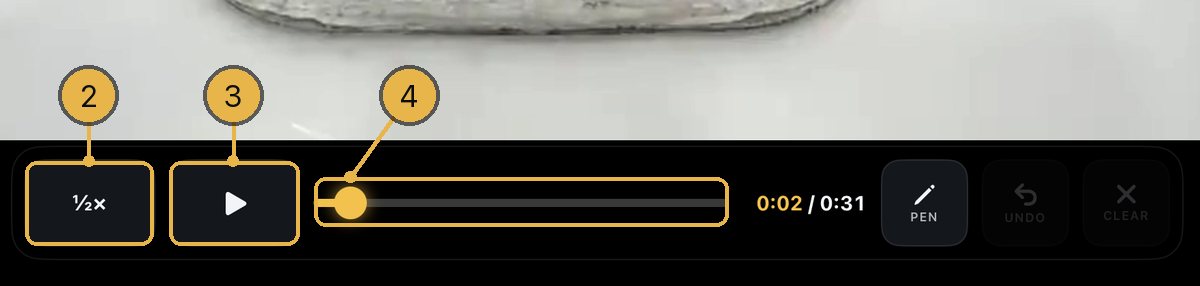
- Roll a replay. After the intro, the replay bar shows where the score and clock buttons were.
- Tap ½× to play at half speed. Tap it again for normal speed.
- Tap pause to hold the picture. Tap play to go on from that spot.
- Drag the line with the gold dot to move through the replay. The picture holds where you let go.
- After you tap play, the replay plays to its end, then the live game comes back.
Good to know
- iPad only. On iPhone and on a remote there is no replay bar, and the replay plays straight through.
- Pro only.
- The time on the bar shows where you are and how long the replay is.
- The bar is for replays only. It does not show during the intro or outro, or for clips from CLIPS.
- Each new replay starts at normal speed.
- Viewers see what you do. Slow motion and held pictures go out on the stream and into the recording.
How do I draw on a replay?
Pause the replay, tap PEN, and draw on the picture. Drag for a line with an arrow. Tap for a ring under a player.
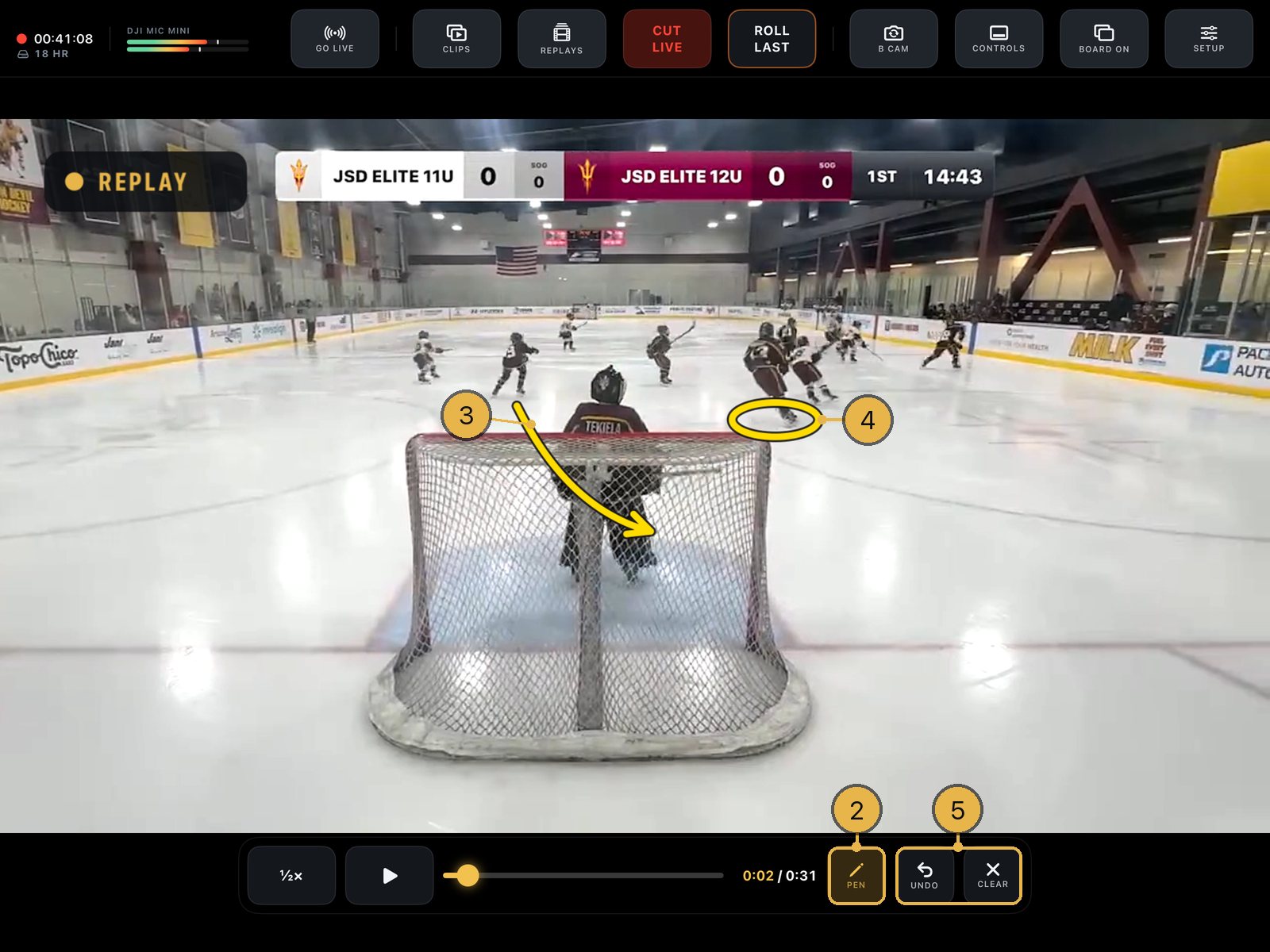
- Roll a replay. On the replay bar, tap pause.
- Tap PEN on the replay bar, just left of UNDO and CLEAR. It turns gold.
- Drag your finger on the picture to draw a line. It ends in an arrow. Start the line on the picture, not on the black bars.
- Tap the picture once to drop a ring, like under a player.
- Tap UNDO to take away your last mark. Tap CLEAR to take away all of them.
- Tap play when you are done. The lines clear by themselves, and PEN turns off.
Good to know
- iPad only. Pro only.
- PEN only works while the replay is paused. UNDO and CLEAR are dim until there is something to take away.
- The lines show live on the stream and in the game recording.
- The lines are not in the saved replay. Save to Photos, Share and recaps are clean.
- Moving the gold dot also clears the lines. PEN stays on.
- Lines are smoothed, so a shaky finger still draws a clean line.
How do I go back to the live game during a replay?
On iPad, tap CUT LIVE in the top bar. The replay stops right away and the live game is back on.
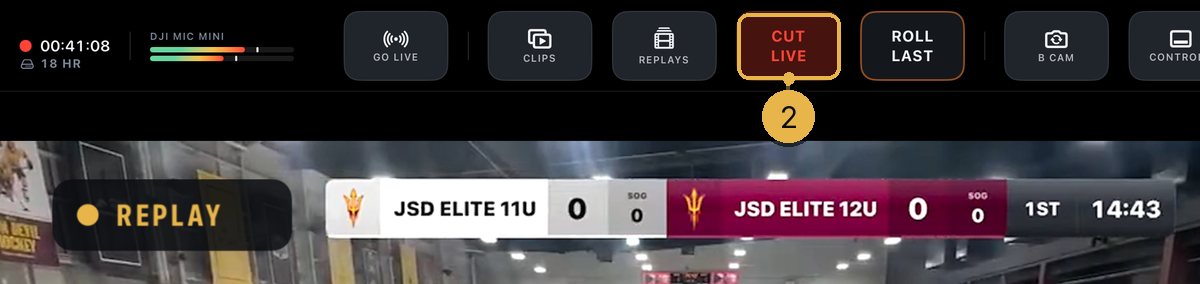
- While a replay plays, look at the top bar. Where GRAB REPLAY was, it now says CUT LIVE, in red.
- Tap CUT LIVE. The replay stops right away and the live game comes back.
Good to know
- iPad only. On iPhone, a replay plays to its end.
- A remote has no CUT LIVE for replays.
- Any lines you drew go away with it.
- CUT LIVE also shows while a clip from CLIPS plays, and it stops that clip too.
- Rolling another replay or a clip also replaces the one that is playing.
Can I use my own picture or video before and after replays?
Yes. In SETUP, tap the box in the Replay section and pick a picture or a video. It plays before and after every replay you roll.
- Open SETUP.
- Tap Clips and Replays.
- Scroll to the Replay section. Tap the small box on the left. It says DSN REPLAY until you add your own.
- Pick a picture or a video from Photos.
- To go back to the DSN one, press and hold the box and tap Use the DSN sting.
Good to know
- Replays are part of Pro.
- A picture plays as a 2-second card. A video plays its first 3 seconds.
- Each sport keeps its own artwork.
- This is for replays only. Your clips always play without it.
1 answerVideo Review
What is Video Review, and how do I use it?
Video Review lets you play back a whole game, or a set of replays and clips, and draw on it. You can show it on a TV. It is on iPad, with Pro.
- Stop recording and streaming first. Video Review is gray while the game is going out.
- On the main device (iPad), tap REPLAYS. Then tap VIDEO REVIEW at the top left.
- Pick a tab at the top: GAMES, REPLAYS or CLIPS.
- GAMES: tap a game under ON THIS IPAD. Or, next to "Open a game from," tap PHOTOS or FILES.
- REPLAYS or CLIPS: tap each one you want, in the order to play them. Then tap REVIEW at the bottom.
- Use the bar at the bottom: ½×, play and pause, the line with the gold dot, and PEN, UNDO and CLEAR. Pause first, then tap PEN to draw.
- In a game, a GOAL button sits on each side of ½× and play. The left one jumps back to the play before a goal. The right one jumps ahead to the play before the next goal. In a list, the same buttons say CLIP and go clip to clip.
- Double-tap the left side of the picture to go back 10 seconds, or the right side to go ahead 10 seconds.
- To show it on a TV, tap MIRROR TO TV for the steps.
- Tap Done to close.
Good to know
- iPad only. Pro only.
- If recording or the stream starts, even from a remote, Video Review closes.
- You can also tap a score on the line to jump to it.
- A game filmed in DSN shows its goals, shots and periods on the line. Other videos show "No board marks."
- For a TV, use Screen Mirroring to an Apple TV or AirPlay TV, or a USB-C to HDMI adapter. The TV shows the play and your lines. The buttons stay on the iPad.
- Opening from Photos or Files does not copy the video.
- If DSN is not allowed to see your videos, it shows the way: Settings → Apps → Dad Sports → Photos.
- While PEN is on, double-tap to skip does not work.
- There is no save or share button in Video Review. The lines are for the screen and the TV.
9 answersExtra cameras and the remote
How do I add an extra camera or a remote?
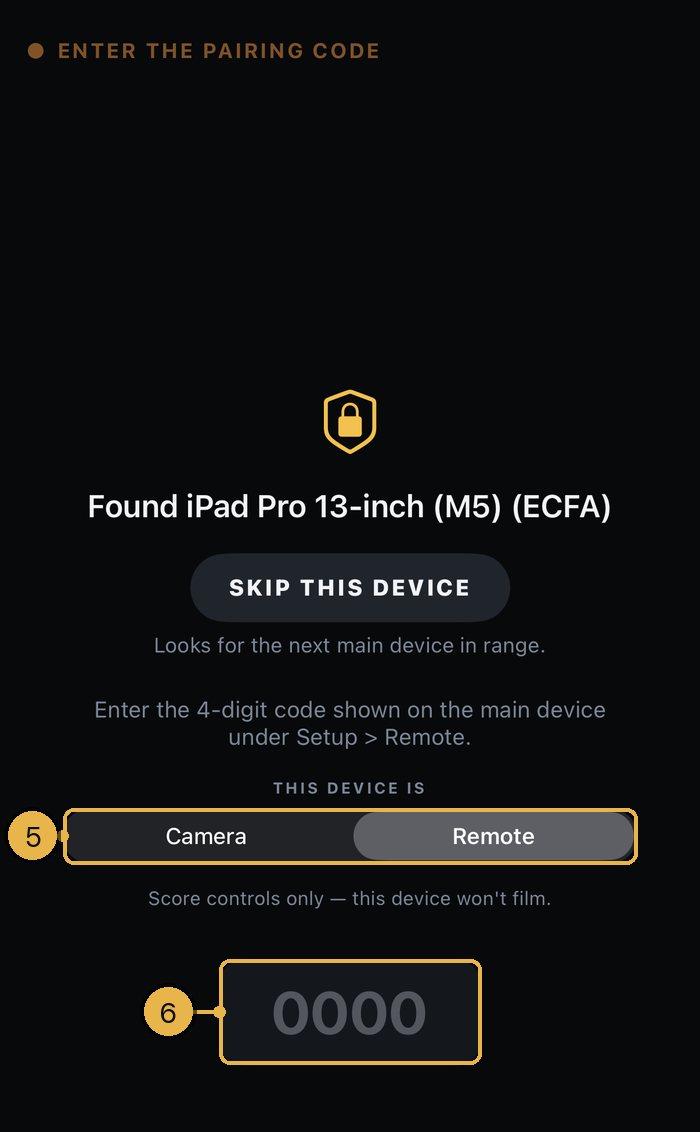
Open DSN on the second device and pick Camera or Remote. Then type the 4-digit code from the main device.
- On the main device, open DSN, pick your sport and tap START.
- On the main device, tap SETUP. On iPad it is in the top bar. On iPhone, tap DECK ▲, then SETUP. The 4-digit Pairing code is near the top, under Devices.
- On the second device, open DSN. At the bottom of the Start screen, tap "Already filming on another device? Use this one as a remote or an extra camera."
- Keep the two devices near each other while it says "Looking for the main device."
- When it says "Found" and the main device's name, look under THIS DEVICE IS. It starts on Remote. Tap Camera if this device will film.
- Type the 4-digit code. It joins as soon as you type the fourth number.
- Check the top line. It says CONNECTED · CAMERA or CONNECTED · REMOTE.
Good to know
- Other devices can find the main device only once its game screen is up.
- Extra cameras are part of Pro on the main device. The camera and remote devices do not need their own Pro.
- A camera shows STANDBY and an OPEN CAMERA button.
- Picked the wrong one? Tap the top line and pick the other one.
- The code changes each time the app opens again on the main device. Saved devices join without it.
- Found the wrong main device, like another game's at the rink? Tap SKIP THIS DEVICE. Tap Show it again to undo.
- Give the main device a name so it is easy to spot: SETUP → Devices & remote → This device's name. If the game screen is already up, other devices see the new name after the app opens again.
- Can't find it? Tap RESTART SEARCH.
- To make a main device into a camera or remote: SETUP → Devices & remote → Use this iPhone as a companion instead (on iPad it says iPad). It is locked while you record or are live. To go back, tap MAKE THIS THE MAIN DEVICE on the Looking for the main device screen.
- The second device's screen says the code is in Setup, under Devices. It is also in Setup → Devices & remote.
How do I switch between cameras during the game?
On the main device, tap a camera's small picture to put it on air. Tap A CAM to go back to the main device's camera.
- On each camera, tap OPEN CAMERA. Allow camera access the first time.
- On an iPad main device, the cameras that are not on air show as small live pictures on the left side: A CAM, AUX 1 and AUX 2.
- Tap a picture. That camera goes on air right away.
- To go back to the main device's own camera, tap A CAM.
- On an iPhone main device, the cameras show at the bottom left as AUX 1 · TAKE. Tap one to put it on air. It then says AUX 1 · ON AIR with a gold edge. Tap it again to go back to A CAM.
Good to know
- Extra cameras are part of Pro.
- A CAM is the main device's camera. B CAM is its front camera, for an interview. AUX 1 and AUX 2 are your extra cameras.
- B CAM: on iPad, tap B CAM in the top bar. On iPhone, tap DECK ▲, then B CAM. Tap it again to go back.
- The person at a camera can tap GO LIVE on the camera to put it on air. CUT TO A CAM sends it back. A camera that is on air shows a red ● ON AIR bar across its top.
- Aux cameras show the scoreboard like A CAM. B CAM hides it unless you turn on SETUP → Camera & recording → Scoreboard on B CAM.
- Tapping a camera while a replay plays stops the replay and takes that camera.
- In Touch Track, the small pictures don't show. The touch pad does the switching.
- The remote can't switch cameras, except with the touch pad in Touch Track.
- On the camera: tap the X to close it and take it off air. The zoom buttons on the right change its zoom. The round arrow button switches between its back and front lens.
- Keep DSN open on each camera. If you leave the app, the camera closes. It opens again when you come back.
- Picture upside down? Use Flip in SETUP → Devices & remote → Saved devices. On an iPad main device, you can also tap the ••• in the top-left corner of that camera's small picture, then Flip.
- Want each camera to keep its own full recording? Turn on SETUP → Camera & recording → Cameras record their own copy. While you record, each camera saves its copy to its own Photos.
What can the remote do?
The remote runs the game from the bench or the stands: score, clock, replays and clips. It does not film.
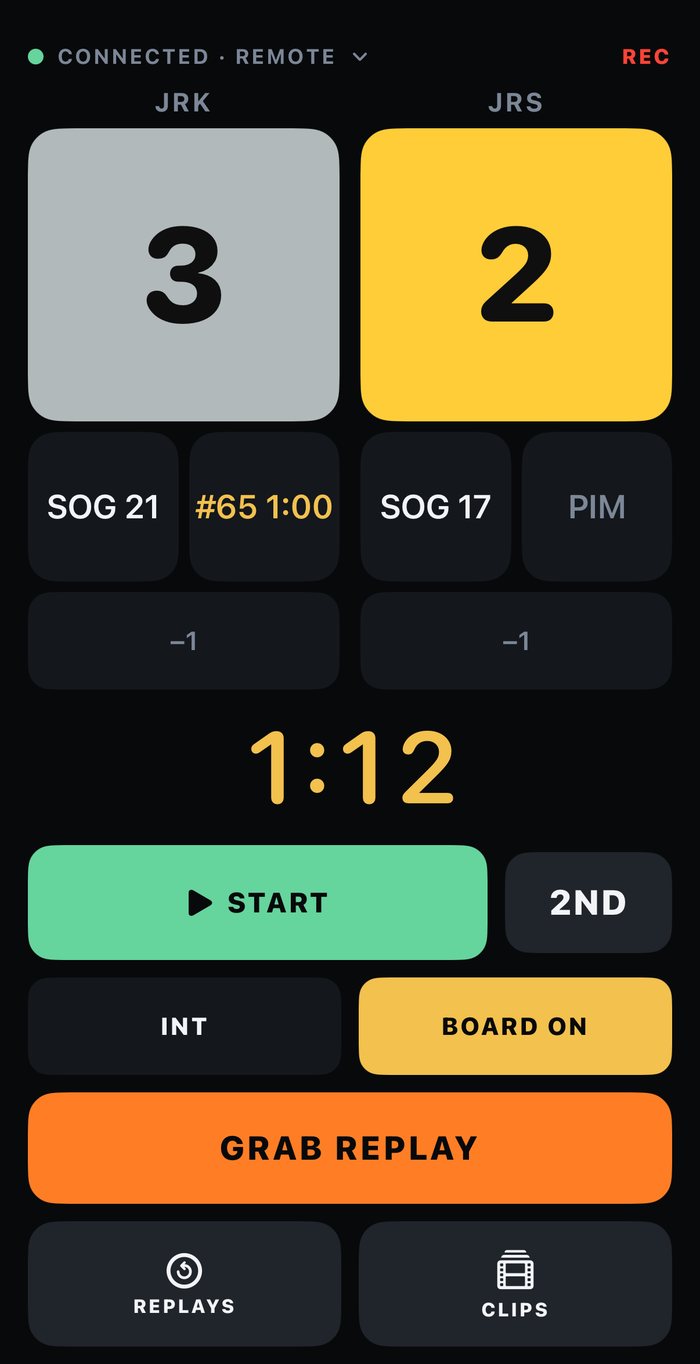
- Pair a device as Remote. The top line says CONNECTED · REMOTE.
- Tap a team's big score to add a goal. Tap −1 under it to take one away.
- Tap the button under the score to add one to its count, like SOG in hockey, FOULS in basketball or SHOTS in soccer. In sports that have them, tap PIM for a penalty, or CARD for a card.
- Clock: tap START or STOP. Tap the period button (like 1ST) to go to the next one. Tap −5 or +5 to fix the clock. INT marks intermission.
- Tap BOARD ON / BOARD OFF to show or hide the scoreboard.
- Tap GRAB REPLAY after a big play. To play it, tap REPLAYS, tap ROLL on the one you want, then tap Play it.
- Tap CLIPS, tap ROLL on a clip, then tap Play it.
- To zoom the main camera, tap the top line and turn on Camera zoom. Then hold the − or + button, or tap 1x, 1.5x or 2x.
Good to know
- Score and clock work on the free plan. Replays and clips need Pro on the main device. Without it, GRAB REPLAY is grayed out.
- Replays and clips ask first: "Put this on air?"
- On an iPad remote, ROLL LAST picks the newest replay.
- To repeat a clip on air, tap its loop button, then Loop it. Tap its stop button to end the loop.
- Camera zoom is off at first on an iPhone remote and on at first on an iPad remote. It does not show in Touch Track.
- When the game stats are on air, END BROADCAST ends the game, the recording and the live stream. It asks first.
- If the remote loses the main device, it hides the score so nobody trusts an old number.
- In baseball, cricket and sports played in sets, the clock and score buttons are different.
Do I have to type the code every time?
No. A device types the code once. After that it joins by itself.
- Pair the device once with the code.
- Next game, open DSN on the main device and tap START.
- Open DSN on the camera or remote. It joins on its own.
- On a camera, tap OPEN CAMERA.
- To name a saved device, go to SETUP → Devices & remote → Saved devices on the main device. Tap the device, type a name like Bench iPad, and tap Save.
- To make a device type the code again, swipe left on it in Saved devices and tap Forget.
Good to know
- Saved devices join without the code must be on. It is on at first. Turn it off and every device types the code each time.
- A device is saved only after it really pairs once.
- In Saved devices, a device that is linked now says Connected in green.
- If a device drops mid-game, it rejoins by itself when it is back in range. A camera that was filming opens its camera again.
- On the main device, a dropped camera can show AUX 1 · NO SIGNAL and TAP TO RECONNECT. Tap it.
- If the camera on air drops, the main device goes back to A CAM and says "Aux camera disconnected — back on the game camera." In Touch Track it goes to the other camera.
- While the link is down, the camera says CONNECTION LOST. The remote hides the score until the link is back.
- Tap RESTART SEARCH on the joining device to look again now.
- If TAP TO RECONNECT says "AUX 1 isn't connected. Open the camera on that device again.", go to that camera and tap OPEN CAMERA.
How many cameras and devices can I connect?
DSN Pro runs up to 4 devices: 3 cameras and 1 remote. The main device counts as the first camera.
- The main device is your first camera, A CAM. Its front camera, B CAM, is an extra angle on the same device.
- Pair up to 2 more devices as Camera. They show as AUX 1 and AUX 2.
- Pair one more device as Remote.
Good to know
- A third aux camera is turned away with "Two aux cameras is the limit. Disconnect one to add another."
- To swap a camera mid-game, tap the X on the old camera first.
- Extra cameras are part of Pro. On the free plan, SETUP → Devices & remote shows Add a camera with a PRO badge.
Do the devices need Wi-Fi or internet?
Turn Wi-Fi on, but you don't need internet. The cameras and remote link straight to the main device.
- Turn on Wi-Fi on every device. They don't have to join a network.
- The first time, iOS asks if DSN can find devices on your local network. Tap Allow on every device.
- Keep the devices close. With no network between them, the link is DIRECT and reaches about 40 feet.
- For more range, put every device on one travel router. The link then says NETWORK.
- To check a camera's link, go to SETUP → Devices & remote → Saved devices.
Good to know
- On an iPad main device, each camera's small picture shows NETWORK, DIRECT or NEARBY next to its name. Amber means short range. Tap the ••• on the picture to read what that link can reach. The small picture shows only while that camera is not on air.
- NEARBY is the older short link, over Wi-Fi or Bluetooth. It reaches about 20 feet.
- Rink Wi-Fi works only if it lets devices talk to each other. A busy rink network can slow it.
- Going live to YouTube or Facebook needs internet on the main device only.
- If the main device is an iPhone and the link fails, the status line at the bottom left shows NO LINK. The most likely cause is that Local Network is off for DSN.
How do I know if a camera's battery is low?
The main device tells you. A low camera gets a banner, and on iPad an amber battery badge with its percent.
- When a camera gets to 20%, a banner on the main device says so, like "AUX 1 battery is at 20%." It says it again at 10%.
- On an iPad main device, look at the top-right corner of that camera's small picture for an amber battery badge.
- To see every camera's battery any time, go to SETUP → Devices & remote → Saved devices.
Good to know
- At 10% or lower, the badge fills in amber.
- In Touch Track, the badge shows in that end's bottom corner of the pad on the main device.
- The badge is on the small picture, so you see it only while that camera is not on air. The banner and Saved devices show it either way.
- No badge or banner while a camera is plugged in and charging.
- Only cameras send their battery. A remote's battery does not show on the main device.
- If the main device is an iPhone, you get the banner but no badge.
- A camera keeps its screen on while it films, so plug it in for long games.
How do I set up Touch Track?
Touch Track uses two cameras at center ice, one aimed at each end. You show where the play is on the touch pad, and DSN frames the shot and switches cameras.
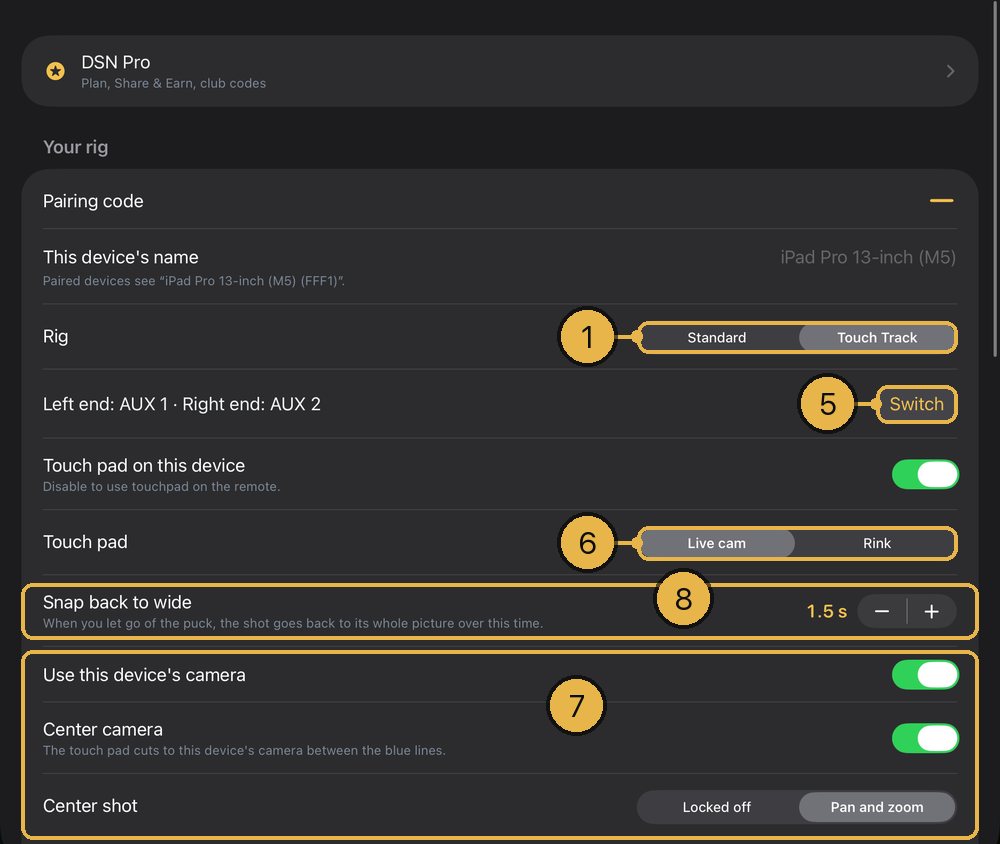
- On the main device, tap SETUP. Under Rig & camera, set Rig to Touch Track.
- Pair two devices as Camera (see "How do I add an extra camera or a remote?").
- Mount both cameras at center ice (center court or midfield in other sports), one aimed at each end.
- On each camera, tap OPEN CAMERA. Its screen says TOUCH TRACK CAMERA. Pick 0.5x or 1x.
- In SETUP, tap Touch Track, just under Rig. Check the ends, like Left end: AUX 1 · Right end: AUX 2. If they are on the wrong ends, tap Switch.
- With the pad on the main device, pick a look next to Touch pad: Live cam, or Rink (Court or Field in other sports).
- Optional: turn on Use this device's camera, then Center camera. Then pick Center shot: Locked off or Pan and zoom.
- Optional: set Snap back to wide. That is how long the shot takes to go back to the whole picture when you let go.
Good to know
- Touch Track is part of Pro, because its cameras are.
- The touch pad works on iPad only: an iPad main device, or an iPad used as the remote. A remote on iPhone has no pad.
- On an iPad main device, Touch pad on this device is on at first. To use the pad on an iPad remote instead, turn it off. While the pad is on the main device, an iPad remote has no pad.
- If the main device is an iPhone, use an iPad as the remote to get the pad.
- 0.5x shows only on a camera that has that lens.
- At first the main device's own camera stays off air in Touch Track. Turn on Use this device's camera to use it. Center camera covers the middle: between the blue lines in hockey and ringette, near the middle in other sports.
- How far the shot zooms in follows Auto zoom in SETUP → Camera & recording.
- On an iPad main device, until a camera is on air, the screen says WAITING FOR A TOUCH TRACK CAMERA.
- A Touch Track camera that runs hot says "This camera is hot and may slow down. Shade it or give it air."
How do I use the touch pad?
Tap one end of the pad to switch to that camera. Press and hold, then drag, to follow the play. Let go and the shot goes back to wide.
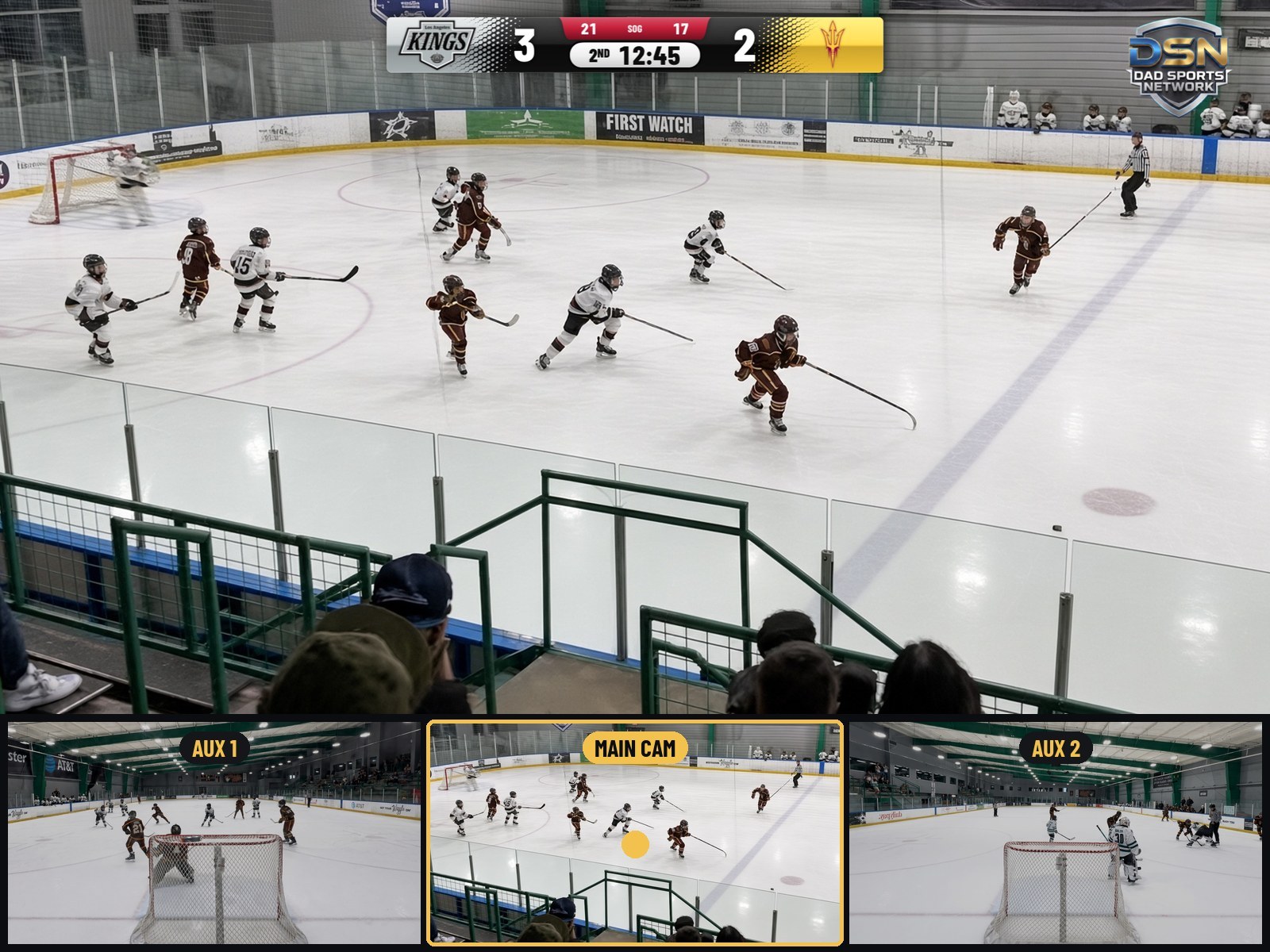
- Before you touch it, the pad says DRAG TO WHERE THE PLAY IS. Each end shows its camera's name: AUX 1 and AUX 2.
- Tap one end of the pad. That camera goes on air with its whole picture.
- Press and hold, then move your finger with the play. The shot follows your finger, up and down too.
- Drag past center, and the camera at the other end goes on air.
- Let go. The shot goes back to that camera's whole picture.
Good to know
- The camera on air has its name filled in gold, and its part of the pad glows gold.
- When you drag across center, DSN waits at least 2 seconds between switches, so the shot can't flicker. A tap or a new hold switches right away.
- While a replay or clip plays, the pad does not switch cameras. On an iPad main device, the pad tucks away during a replay.
- If B CAM is up, dragging does not switch away from it. A tap or a hold does.
- With Center camera on, the middle part is MAIN CAM, the main device's camera.
- On the main device's pad, each end also shows its camera's link (like NETWORK or DIRECT), a ••• menu with Flip, and a battery badge when it runs low.
- How tight the shot gets follows Auto zoom in SETUP → Camera & recording.
8 answersThe scoreboard
How do I change my sport or set how long each period is?
Change the sport in SETUP, under Sport. Set the minutes in SETUP, under Today's game, then Game rules.
- Open SETUP on the main device. On iPad, tap SETUP at the right end of the top bar. On iPhone, tap DECK ▲ at the bottom right, then SETUP.
- To change sport, tap Sport under Sport. Tap the tile for your sport. The page closes by itself.
- Under Today's game, tap Game rules.
- Basketball only: next to Played in, pick Quarters or Halves.
- Tap − or + on the length row to set the minutes. The row reads Period length, Quarter length or Half length, by sport.
- Turn on Clock counts down for a clock that runs down to 0:00. Turn it off for a clock that counts up.
- If your league plays overtime, set Overtime length (Extra time length in soccer and rugby). Then pick a choice under Tied at the end of regulation.
- Go back to the main Setup page and tap Done.
Good to know
- Free plan: you get the one sport you picked when you first set up the app. Other sports are part of Pro.
- Changing the sport resets the game. Each sport keeps its own teams, saved teams, scoreboard and replay intro.
- You can't change the sport while you are recording or live. Setup says "Stop recording first."
- Baseball: set the number of Innings in Game rules. Ringette: set the number of Periods. Other sports with a clock show the number of periods, but you can't change it.
- Period lengths go from 1 to 60 minutes. Overtime goes from 1 to 30 minutes.
- Starting lengths: hockey 15, basketball 8, soccer 45, football 12, lacrosse 12, ringette 20, rugby 40.
- Soccer and rugby clocks count up.
- Baseball, volleyball, tennis, pickleball and cricket have no clock. For those, Game rules sets innings, sets, games or overs instead.
- Basketball: Game rules also has Bonus at, Double bonus and Show timeouts.
How do I run the game clock?
Use the clock box on the main device. Tap ▶ to start and stop the clock, −5 and +5 to fix it, and the period button to go to the next period.
- On iPad, find the clock box at the bottom middle of the screen. If the board is set to Bottom, it is at the top.
- Tap ▶ between −5 and +5 to start the clock. Tap it again to stop.
- Tap −5 or +5 to take 5 seconds off or add 5 seconds.
- Tap the period button to go to the next period. It shows the period you are in, like 1ST, Q1, 1H or 1ST HALF.
- Tap INT at a break. The clock stops and the board shows INT (HALF at halftime of a basketball game played in halves). Tap INT again to end the break.
- On an iPhone main device: tap START (STOP while running) above the score buttons on the right. Tap DECK ▲ for −5, ▶, +5, the period button and INT (END INT during a break).
- On a remote: START or STOP and the period button sit right under the clock. −5, +5 and INT are in the row below.
Good to know
- Each tap of the period button resets the clock. Don't tap it in the middle of a period.
- After the last period, the next tap goes to overtime.
- When the clock reaches the end of a period, START will not run it again. The app tells you to tap the period button.
- Starting the next period also ends INT.
- In Touch Track with the touch pad on the main device, the iPad clock box sits at the bottom left, beside the pad.
- Starting the clock does not start recording. Only the red record button records.
- Soccer and rugby clocks count up. −5 and +5 always change what you see on the clock.
- Soccer: ADDED sits next to the period button. Each tap adds one minute of added time. To clear it, press and hold ADDED, then tap Clear added time.
How do I add a score, take one back, and count shots?
Tap the big team-colored button to add a score. Tap −1 next to it to take one back. Tap SOG (or SHOTS in soccer) to count a shot.
- On iPad, tap the big button in the team's color when that team scores.
- For other amounts, tap the small buttons under the team: +1 and +3 in basketball; +1, +2 and +3 in football; +2 and +3 in rugby; +2, +3 and +4 in baseball.
- Made a mistake? Tap −1 next to the big button. It takes off 1 point each tap.
- To count a shot, tap SOG (hockey, lacrosse, ringette) or SHOTS (soccer) under the team.
- To take a shot back on iPad, press and hold SOG, then tap Remove a sog. (In soccer it reads Remove a shots.)
- On an iPhone main device: tap the team's score tile on the right side to add a score. Tap DECK ▲ for −1, the other amounts and SOG.
Good to know
- The big button adds the sport's main score: 1 in hockey, soccer, lacrosse, ringette and baseball, 2 in basketball, 6 in football, 5 in rugby. When it is more than 1, the amount (like +2) shows under the score.
- To take back a basketball 2, tap −1 twice.
- If you don't see SOG on iPad, go to SETUP, then Scoreboard, and turn on Show sog (Show shots in soccer). Turning it off hides the button and the count on the board.
- On iPhone, the Deck has no way to take back a shot.
- In a shootout, the big button reads SCORED and −1 becomes MISSED.
- Volleyball, tennis and pickleball: tap the big button when that side wins the point. −1 takes back the last point.
- Baseball: a walk with the bases loaded adds the run for you.
How do I add a penalty?
Tap PIM under the team that got the penalty. Type the player's number, then tap how long it is. It shows on the board and counts down.
- On iPad, tap PIM under the team that took the penalty.
- Type the player's number on the number pad. You can skip this.
- Tap how long the penalty is. Hockey: 1:30, 2:00, 4:00, 5:00 or 10:00. Lacrosse: 0:30, 1:00, 2:00 or 3:00. Ringette: 2:00 or 4:00. Rugby: 10:00 (yellow card) or 20:00 (red card).
- The penalty shows on the board and counts down with the game clock.
- To end a penalty early, like after a power play goal, tap PIM again. Under SERVING, tap Clear next to it.
- Soccer cards: tap CARD under the team. Type the player's number, then tap YELLOW or RED. To remove a card, tap CARD again, find it under SHOWN and tap Clear.
- On an iPhone main device: tap DECK ▲, then PIM (or CARD) for the team. Type the number and tap a time. Running penalties are at the top under Serving, each with Clear.
- On a remote: tap PIM under the team. If you want the player's number, type it next to PLAYER first. Then tap a time under HOW LONG. To end one early, tap PIM, then tap CLEAR under SERVING.
Good to know
- The penalty clock only runs while the game clock runs.
- A penalty carries into the next period.
- A goal does not end a penalty by itself. Use Clear.
- Two players in the box at once? The sheet shows it, like 5 ON 3.
- In hockey, a 10:00 misconduct does not make a power play.
- Soccer: a second yellow for the same player number turns into a red. On iPad the sheet says SECOND YELLOW — SENT OFF.
- On iPhone you can add a card but not remove one.
- On a remote, the PIM button shows the time left once a penalty runs.
- Basketball and football have no PIM button.
Where are fouls, timeouts, downs, the baseball count and sets?
The app shows only the buttons your sport needs. They sit under each team and in the clock box on the main device.
- Basketball fouls: tap FOULS under the team for each team foul. To take one back on iPad, press and hold FOULS, then tap Remove a fouls.
- Timeouts (basketball, football, lacrosse): tap TO under the team to use one. The number left is on the button, like TO 5. To undo, press and hold it, then tap Give a timeout back.
- Football downs: the row under the clock has ▶ 2ND (it names the next down), −1 and +1 for yards to go, and 1ST & 10 to reset.
- Baseball: tap BALL, STRIKE or IN PLAY for each pitch, and OUT for an out. Tap 1B, 2B or 3B to show a runner. Tap the inning button (like ▲1ST) to end the half-inning. Tap BACK to go back one half-inning.
- Volleyball, tennis and pickleball: tap a team's big button when that side wins the point. SERVE shows who serves. Tap it to switch who served first.
- Cricket: tap 0 (DOT), 1, 2, 3, 4 or 6 for each ball. Tap WIDE or NO BALL, then pick the runs. Tap WICKET for an out, and UNDO to take back the last ball.
- On an iPhone main device, all of these buttons are in the Deck. Tap DECK ▲.
Good to know
- Fouls go back to 0 each period.
- On iPhone the timeout button reads TO −. The Deck has no way to take back a foul.
- Baseball has no clock. Ball four is a walk, strike three is an out, and the third out ends the half-inning. The app does this for you.
- On iPad the inning button shows ▲ for the top of the inning and ▼ for the bottom. On iPhone it always shows ▲.
- Volleyball, tennis and pickleball have no clock. The app keeps the points, games and sets for you.
- To hide timeouts on the board, turn off Show timeouts in SETUP, then Today's game, then Game rules. The TO button stays.
- Set the basketball bonus in Game rules with Bonus at and Double bonus.
- Volleyball, tennis and pickleball: set how many sets or games, and who serves first, in Game rules. Set overs and players for cricket there too.
- Hockey and soccer do not track timeouts.
How do I change the look of the scoreboard?
Go to SETUP, then Scoreboard, and tap the design you want. You can also move it to the top or bottom and make it more see-through.
- Open SETUP on the main device. On iPad, tap SETUP in the top bar. On iPhone, tap DECK ▲, then SETUP.
- Under Sport, tap Scoreboard. The row shows the design you use now.
- Tap a design: Classic Broadcast, The Rail, The Stack, The Stack Logos, The Gridiron or The Marquee. Each one shows a preview with today's teams.
- Tap Top or Bottom to move the board.
- Drag the Opacity slider to make the board more or less see-through.
- Go back to the main Setup page and tap Done.
Good to know
- Classic Broadcast is free. The other designs are part of Pro. On the free plan they show PRO, and tapping one opens the Pro page.
- A check mark shows the design you picked.
- The Stack Logos is The Stack with each team's logo in place of its name.
- Top and Bottom do not show for The Stack, The Stack Logos or baseball. Those boards always sit in the top-left corner.
- On iPad, for sports with a clock, a board at the bottom moves your score and clock buttons to the top of the screen.
- Each sport keeps its own scoreboard choice.
How do I hide the scoreboard or bring it back?
On iPad, tap BOARD ON in the top bar. It changes to BOARD OFF and the board leaves the picture. Tap it again to bring it back.
- On an iPad main device: tap BOARD ON in the top bar. It reads BOARD OFF and the board is gone. Tap BOARD OFF to bring it back.
- On an iPhone main device: tap DECK ▲, then SETUP. Under Sport, tap Scoreboard. Turn Show scoreboard off or on.
- On a remote: tap BOARD ON (or BOARD OFF) in the row under the clock.
Good to know
- Your sponsor logo stays up when the board is hidden.
- The board leaves the picture during a replay or a clip. It comes back when you go back to live.
- When B CAM is on air, the board only shows if Scoreboard on B CAM is on (SETUP, then Camera & recording).
- On iPad, the CONTROLS button hides your own score and clock buttons, not the board.
How do I add my sponsor's logo to the broadcast?
Open your team in SETUP → Teams, then Sponsor. Add the logo, turn on Show sponsor bug, and pick a corner and size.
- Open SETUP on the main device.
- Tap Teams, then tap your team. Under Team Page, tap Sponsor.
- Tap the Sponsor box. Pick the sponsor's logo from Photos.
- Turn on Show sponsor bug.
- Next to Logo, pick My sponsor to show your logo, or DSN to show the DSN mark.
- Next to Corner, pick Top Left, Top Right, Bottom Left or Bottom Right.
- Drag Size and Opacity until it looks right.
- Go back to the main Setup page and tap Done.
Good to know
- The sponsor logo is part of Pro. Free games always carry the DSN mark in the top-right corner, and it can't be turned off.
- The sponsor logo stays up when the scoreboard is hidden, and during replays.
- It starts in the corner opposite the board.
- To remove the logo, press and hold the Sponsor box, then tap Remove sponsor. Switching between My sponsor and DSN keeps your upload.
- Each team with a team page keeps its own sponsor. If neither team playing today has a team page, set the sponsor in SETUP, under Go Live, at Sponsor.
7 answersSaving, sharing and Pro
Where do my recorded games go?
When you stop recording, the game saves to Photos on its own. The app also keeps its own copy in the Files app, under Dad Sports.
- On the main device, tap the red button to stop recording.
- Watch for the green note. On iPad it shows near the top of the screen. On iPhone it shows near the bottom. First it says "Saving to Photos…". Then it says "Saved to Photos" and the file size.
- Open the Photos app. The game is there.
- For the app's copy, open the Files app.
- Tap On My iPad (On My iPhone on an iPhone), then Dad Sports.
- To see your games inside the app, open SETUP and tap Your games. On iPad, SETUP is in the top bar. On iPhone, tap DECK ▲ first, then SETUP.
Good to know
- The first time the app saves to Photos, iOS asks if Dad Sports can add to Photos. It only asks to add.
- Said no to Photos? The game is still safe in Files, under Dad Sports.
- The app keeps its own copy even after it saves to Photos. So each game takes up space twice until you delete one copy. See "How do I know I have enough space for the game, and how do I free some up?"
- If you leave the app in the middle of a game, the recording stops and saves. Pulling down Control Center does not stop it.
- Using extra cameras? Turn on Cameras record their own copy in SETUP, then Camera & recording, under Export. When you stop, each camera saves its full picture to its own Photos. That copy has no sound.
- Replays are not in the Files app. See "How do I save a replay to Photos or send it to someone?"
- In Files, each game is named with the two teams and the date and time. A copy with no scoreboard has .clean in its name.
How do I save a copy of the game with no scoreboard?
Turn on Also record a clean feed. Each game then saves a second file with no scoreboard or graphics. This is part of Pro.
- On the main device, open SETUP. On iPad, it is in the top bar. On iPhone, tap DECK ▲, then SETUP.
- Tap Camera & recording.
- Under Export, turn on Also record a clean feed.
- Go back and tap Done.
- Tap the red button to record as normal.
Good to know
- Pro only. On the free app, the switch turns back off and opens the Pro screen.
- Turn it on before you tap record. It starts with your next recording.
- When you stop, both files save to Photos and stay in Files, under Dad Sports. In SETUP → Your games, the game shows "+ clean copy".
- It uses about twice the space, because it is a second full file.
- Both files have the same timestamps, so they line up in an editing app.
- Deleting a game in Your games deletes both files from the app. Copies in Photos stay.
How do I know I have enough space for the game, and how do I free some up?
The app shows how much recording time is left, in minutes (MIN) or hours (HR). To free space, delete old games in SETUP, then Your games.
- Before the game, look at the space readout on the main device. On iPad, it is in the top bar, under the record status. On iPhone, it is in the status bar at the bottom left.
- For the full number, open SETUP, tap Health, and read Space left.
- To free space, open SETUP and tap Your games.
- Swipe left on a game and tap Delete.
- Tap Delete this game.
Good to know
- It reads like "45 MIN" or "3 HR". On iPad, it turns gold at 25 minutes or less and red at 10 minutes or less. On iPhone it does not change color.
- The time left is based on your Record quality. 1080p60 uses about 10 GB a game. 720p60 uses about half. Change Record quality in SETUP → Camera & recording, under Export. You can't change it while recording or live.
- A clean copy doubles the space a game uses.
- Deleting from Your games does not touch Photos. Make sure the game is in Photos first, because the app can't check.
- You can't delete the game that is being recorded right now.
- Old replays take space too. See "How do I save a replay to Photos or send it to someone?" for Delete All Replays.
- If space gets very low, the app won't start a recording. It says "Not enough storage to record — free up space first."
- If space runs low during a game, the app stops and saves the recording. It says "Storage is almost full — recording stopped and SAVED. Free up space to record again."
How do I make a highlight video of the game?
When the game ends, the app offers a game recap. Pick the plays, tap Make recap, then save it or share it.
- Record the game on the main device. Tap GRAB REPLAY for the plays you want.
- When the game ends, the GAME RECAP card opens and says "Pick the plays". If game stats are on, tap the GAME STATS button in the middle of the screen first. The recap opens when you tap Done on the stats.
- Tap a play to leave it out. Tap it again to put it back. You can also tap Select all or Clear all.
- Tap Make recap. Wait while it says "Making your recap".
- When it says "Your recap is ready", tap Save to Photos, or tap Share.
- Missed it, or the game never ended on the board? Tap REPLAYS, tap ⋯ at the top right, then tap Make a Recap.
Good to know
- The card only opens if the game has replays or goals.
- Press and hold a replay to watch it.
- The recap starts with the final score. Then the plays run in game order. If game stats are on, it ends with the stats.
- Goals are cut from the game video, so they need a recording. Your team's goals start picked. The other team's goals start left out.
- If you are still recording, more goals come in when the recording stops.
- It is sized for Instagram, TikTok and Messages.
- Save or share it before you close it. The app doesn't keep it. To get it back, make it again.
- Make a Recap in REPLAYS only shows when this game has replays. REPLAYS is part of Pro.
- If game stats are on the broadcast, END BROADCAST also ends the game and opens the recap.
- Tap Not now to skip it.
I already paid for Pro. How do I get it back on a new device?
Tap Restore Purchases on the Pro screen. Pro is tied to your Apple Account, not to a DSN login.
- Make sure the device is signed in to the same Apple Account you paid with.
- On the main device, open SETUP. Tap Go Pro at the top, then tap Go Pro again.
- Near the bottom of the Pro screen, next to Terms and Privacy, tap Restore Purchases.
- If Apple finds your purchase, the Pro screen closes and SETUP shows "DSN Pro is active".
Good to know
- If not, you'll see "No previous purchase found on this Apple Account."
- There is no DSN account or password. Apple keeps your purchase.
- A purchase made on another device can also turn on by itself, without tapping Restore Purchases.
How do I use a club code?
Open SETUP, tap Go Pro, then tap Redeem a club code. Type your club's code on Apple's screen.
- On the main device, open SETUP. On iPad, it is in the top bar. On iPhone, tap DECK ▲, then SETUP.
- Tap Go Pro at the top. If you already have Pro, it says DSN Pro.
- Tap Redeem a club code.
- Type the code your club gave you on Apple's code screen, and follow Apple's steps.
- When it works, the top row of SETUP shows "Club code active" and how many days are left.
Good to know
- The app says a club code unlocks Pro for the season.
- You can also use the Pro screen. Tap "Have a club code? Redeem it here."
- The code screen is Apple's. It opens inside the app, so you don't need to go to the App Store.
- If the code doesn't work, the app says "Couldn't redeem that code" and gives Apple's reason.
- Clubs can ask for a code on dadsportsnet.com.
No answers match that yet. Try a shorter word, or ask us — we answer every email.